アイコン自動変更マップ
Auto Icon Switch Map
iOS 26–
➜ English
アイコンの明るさを時間帯で自動的に切り替えることができます。
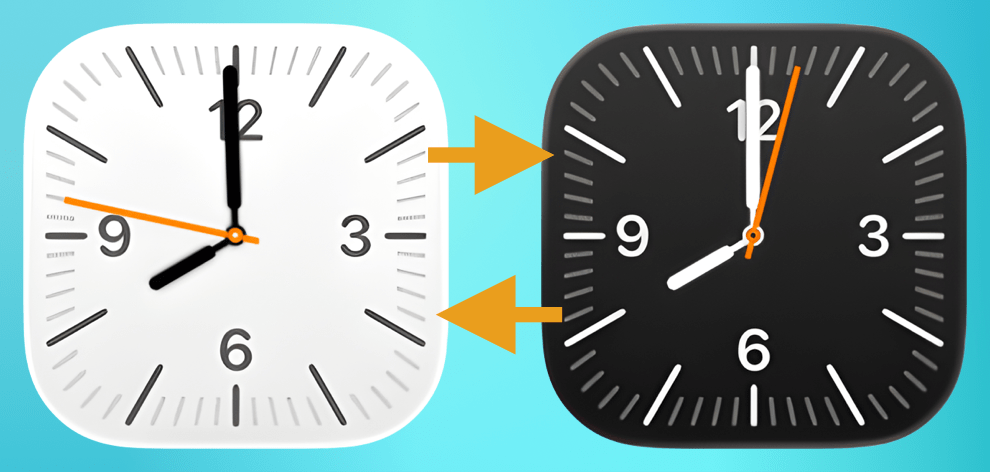
設定は2ステップ
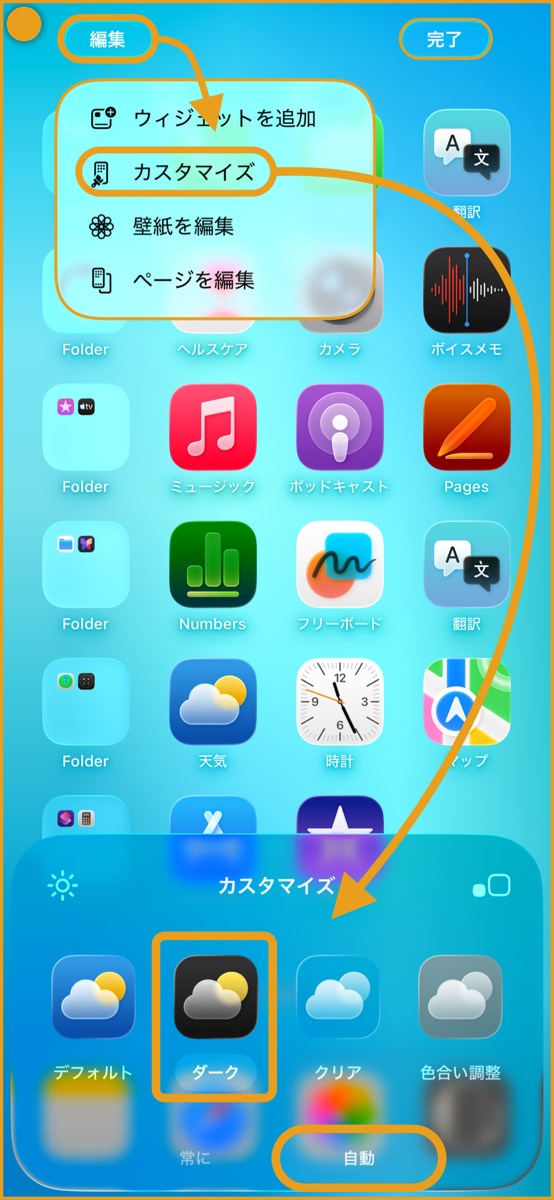
① ホーム画面長押し > カスタマイズ > ダーク・自動に設定。
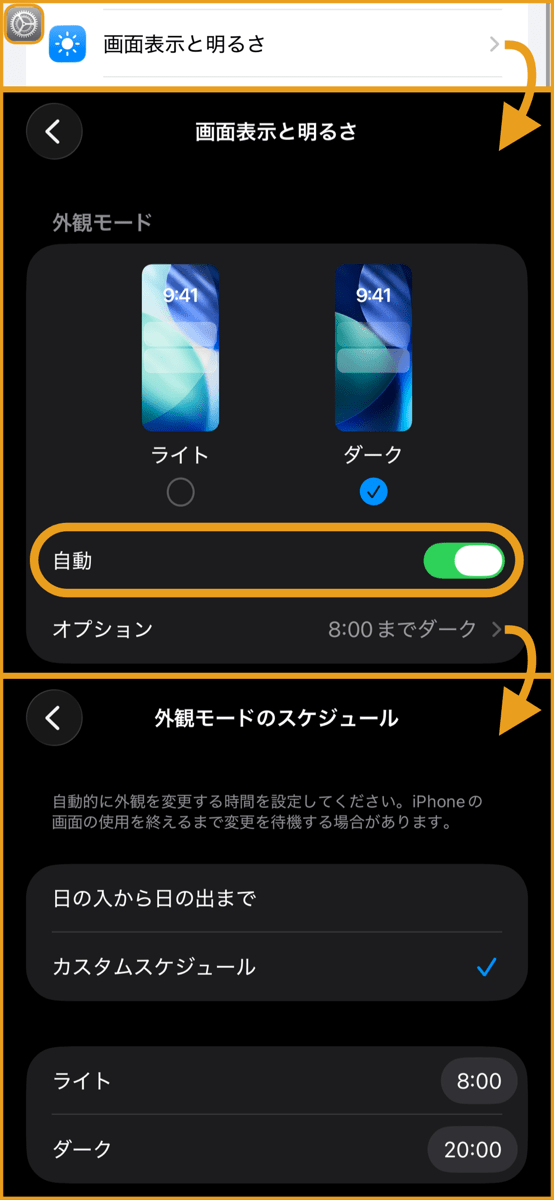
② 設定アプリ > 画面表示と明るさ > 外観モードを自動に。オプションで切り替わる時間帯を設定。
これで昼夜でアイコンの明るさが変わります。
ダーク・自動の意味
ホーム画面カスタマイズのダーク、自動、 ライトモードではデフォルトと全く見分けがつきません。何のためのモード?
これに意味があるのは、設定から外観モードで自動を選んだ時だけです。一箇所で設定できたらいいのに。
これに意味があるのは、設定から外観モードで自動を選んだ時だけです。一箇所で設定できたらいいのに。
- この機能はこちらのAppleサポートで示唆されていますが、設定アプリの外観モードの説明はありませんでした。
- 当サイトのドックを隠す壁紙でこの機能を適用すると、昼夜どちらかだけでドックを隠す設定になります。
You can automatically switch icon brightness based on time of day.
Two Step Setup
① Long press Home Screen > Customize > Set to Dark and Auto.

② Settings > Display & Brightness > Set Appearance to Automatic. Options configure the time periods for switching.
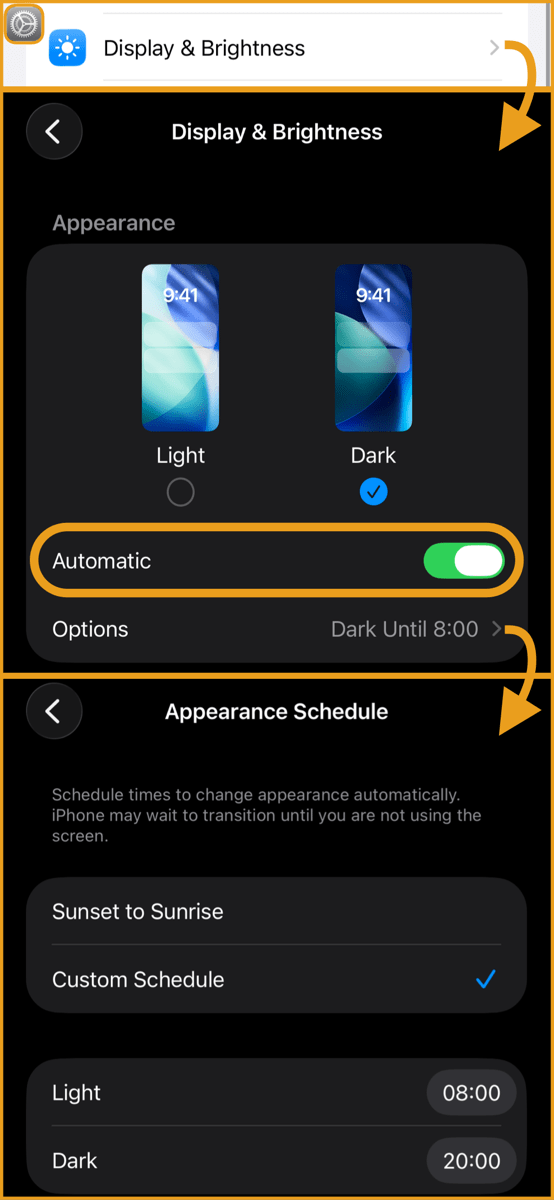
This will change the icon brightness between day and night.
The Meaning of Dark and Auto
In Home Screen customization’s Dark, Auto and Light Mode, it’s completely indistinguishable from default. What’s the point of this mode?
This only becomes meaningful when you select Automatic in Appearance mode from Settings. It would be nice if they could configure everything in one place.
This only becomes meaningful when you select Automatic in Appearance mode from Settings. It would be nice if they could configure everything in one place.
- This feature is suggested in this Apple Support article, but there was no explanation of the appearance mode in Settings.
- When you apply this feature with this site’s Hide Dock Wallpapers, it becomes a setting that hides the Dock during either day or night only.