ザ・基本縁取り壁紙
-16 Plus/15 Pro Max/
15 Plus/14 Pro Max-
The Basic Border
見えない区切りを見せます。
Making hidden zones visible.
Making hidden zones visible.

1290×2930
6.7″ Wallpaper
6.7″ Wallpaper
How to Set
・▲・
・▲・
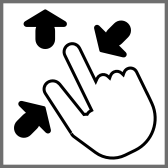


そっと少し、つまんで上げて、放す
ホーム画面:ぼかしオフ・明暗お好み
───────────────
Gently pinch up a little, then release
Home: Blur off; light/dark to taste
───────────────
⚙︎ Help ⚙︎
ホーム画面:ぼかしオフ・明暗お好み
───────────────
Gently pinch up a little, then release
Home: Blur off; light/dark to taste
───────────────
⚙︎ Help ⚙︎
・▼・
タップ → 表示 → 長押し保存
Tap → View → Hold to save
───────────────
ページ最下部に取説があります。
User manual at the bottom of the page.
タップ → 表示 → 長押し保存
Tap → View → Hold to save
───────────────
ページ最下部に取説があります。
User manual at the bottom of the page.
White

Lock Screen

Home Screen
Titanium Gray

Lock Screen

Home Screen
Gold

Lock Screen

Home Screen
Pink

Lock Screen

Home Screen
Red

Lock Screen

Home Screen
Yellow

Lock Screen

Home Screen
Green

Lock Screen

Home Screen
Blue

Lock Screen

Home Screen
Purple

Lock Screen

Home Screen
Rainbow

Lock Screen

Home Screen
Blueprint

Lock Screen

Home Screen
Blackboard

Lock Screen

Home Screen
★
- そっと少しピンチイン ▶︎ 少し上に上げて ▶︎ 指を放すと、自動的に左右いっぱい下ゾロエの位置に戻ってきます。とくにiOS 27以降のApple Intelligence対応機種ではピンチインし過ぎると「拡張」がはたらくので、その手前で止めてください。「拡張」に入ってしまったらキャンセルしてやり直す必要があります。
- 黒い背景の壁紙では、カラー調整で「白黒」を選択するとフレームの一部が欠けます。
- 設定アプリ > –iOS 26:画面表示と明るさ / iOS 27–:外観 > 拡大表示:デフォルト
- iOS 16以降のiPhoneでは壁紙を設定する時の表示位置がまちまちです。さらにiOS 17–26では壁紙を動かすと自動補完で上部がぼかされることがあります。これらをかいくぐって全画面表示にするため、超縦長壁紙を上にスワイプして設定する仕様にしました(iOSのバージョン、機種、絵柄の相性によってはぼかしを避けられないこともあるかもしれませんが、iOS 27で自動補完は廃止されました)。壁紙上部はカットされます。
- 画像形式をWebPにして高品質軽量化を図っています。iOS 14以降で表示できます。
- Gently pinch in a little ▶︎ lift up a little ▶︎ release your fingers, and it’ll automatically snap back to the bottom-aligned, full-width position. On iOS 27+ Apple Intelligence–compatible devices especially, pinching in too far triggers “Extend,” so stop just short of that point. If you do trigger “Extend,” you’ll need to cancel and start over.
- With black background, when Black & White is selected in the color adjustment, a part of the frame is missing.
- Settings > –iOS 26: Display & Brightness / iOS 27–: Appearance > Display Zoom: Default
- On iPhone running iOS 16 or later, the wallpaper’s display position varies when you set it. In addition, on iOS 17–26, moving the wallpaper can trigger Auto-Extend, which blurs the top area. To work around this and achieve a full-screen display, this wallpaper is designed as an extra-tall image that you swipe upward to set (depending on the iOS version, device model, and image composition, the blur may not always be avoidable — though Auto-Extend is removed in iOS 27). The top of the wallpaper will be cropped.
- The image format is WebP to make it high quality and lightweight. iOS 14 or later can display it.
取説
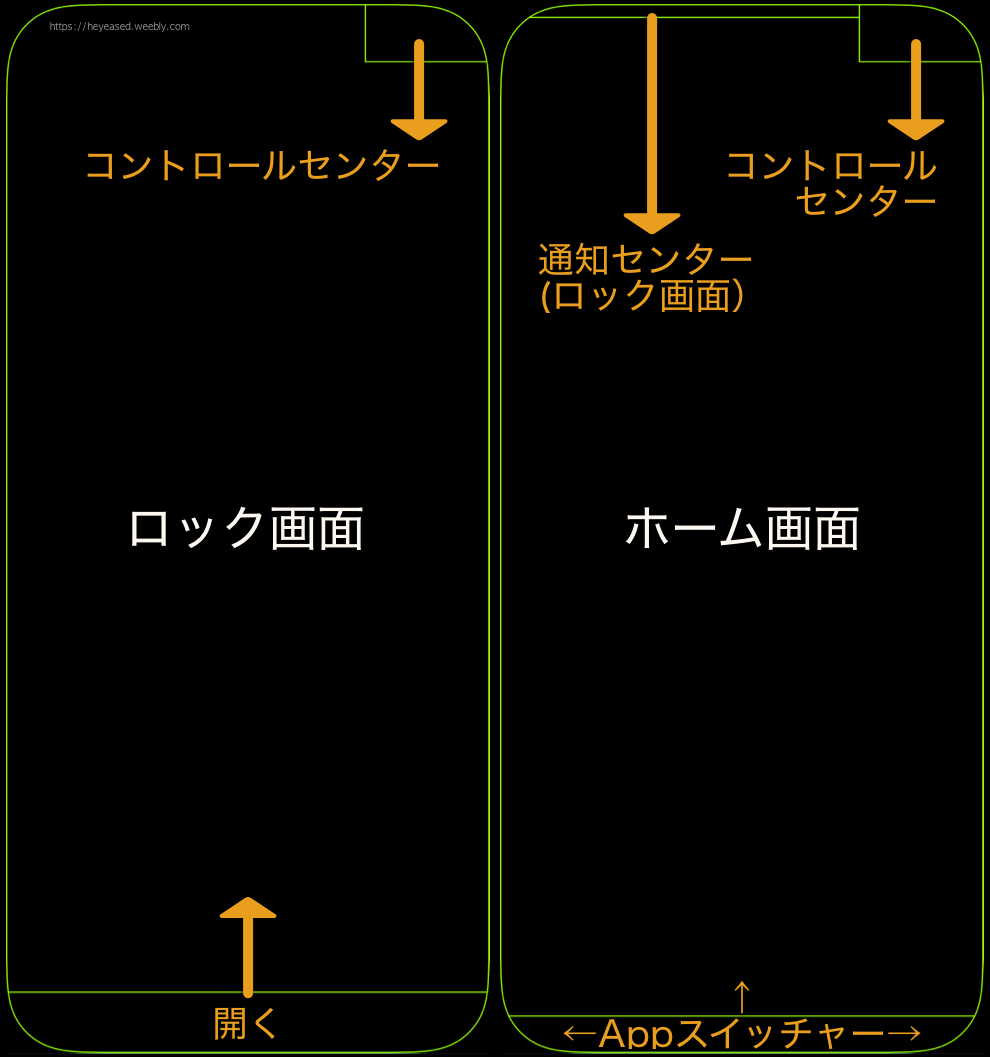
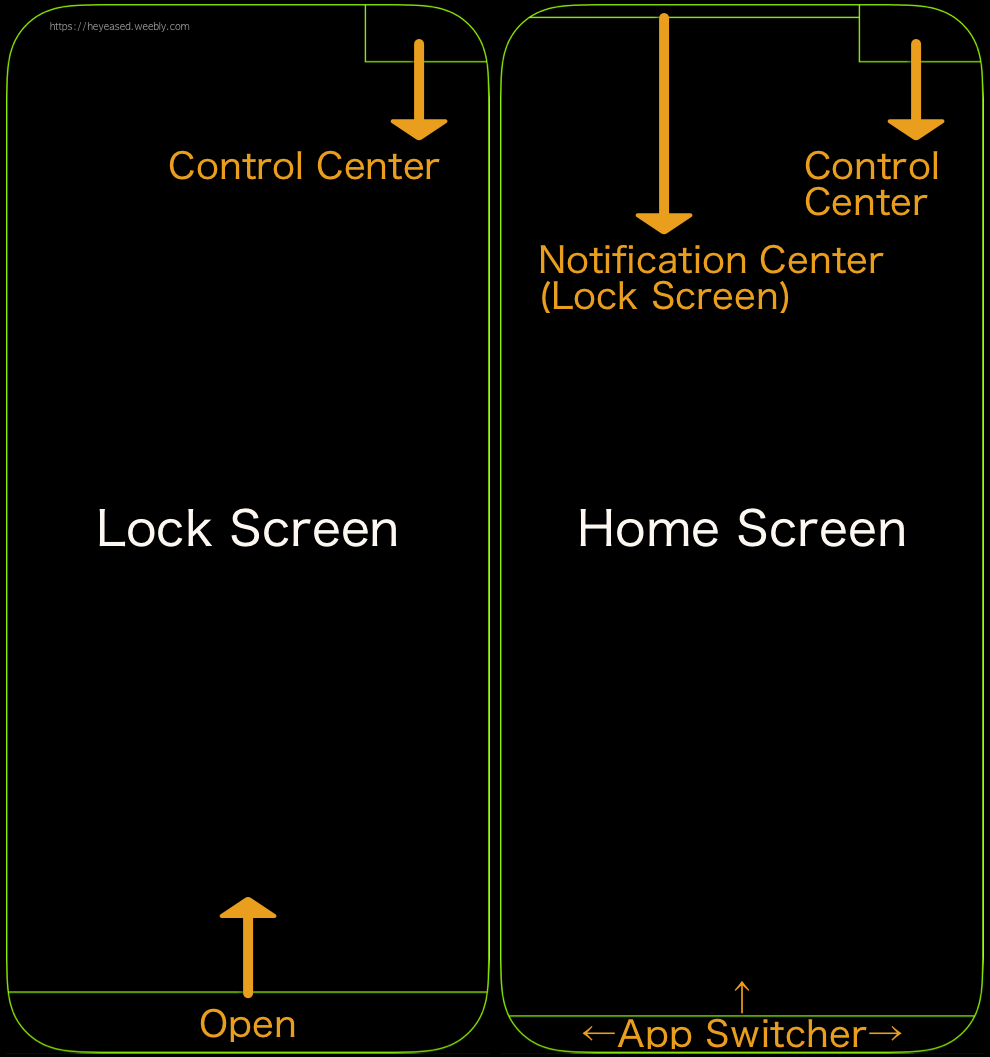
iPhone操作の基本になる見えないスワイプゾーンを正確に縁取っています。
iPhone操作の基本になる見えないスワイプゾーンを正確に縁取っています。
- iOS 27以降の対応機種でSiri AIを有効にすると、画面中央上からのスワイプでSiriが起動します。その場合、ホーム画面で通知センターを呼び出せるのは画面左上からに限られます。
User Manual
It precisely outlines the invisible swipe zones for basic iPhone operations.
It precisely outlines the invisible swipe zones for basic iPhone operations.
- On supported devices with Siri AI enabled in iOS 27 or later, swiping down from the top center of the screen launches Siri. In that case, on the Home Screen, the Notification Center can only be accessed by swiping down from the top left.
アイコン拡大や拡大表示で視覚要素が動いても見えないスワイプゾーンは動きません。ただしダイナミックアイランドモデルでは拡大表示だとフレームが合わないため標準表示のみサポートしています。
仕様上はiOS 14以降で使えますが、ロック画面の再カスタマイズによる表示ずれなどさまざまな不具合が修正されたiOS 17以降用として注意点を減らしました。
Even if visual elements shift with large icons or Larger Text, the invisible swipe zones remain fixed. However, on Dynamic Island models, Larger Text causes the frame to misalign, so only the default display is supported.
Technically, this wallpaper works on iOS 14 and later, but I’ve simplified the notes and recommend it for iOS 17 and later, where various issues—such as display shifts when re-customizing the Lock Screen—have been fixed.
仕様上はiOS 14以降で使えますが、ロック画面の再カスタマイズによる表示ずれなどさまざまな不具合が修正されたiOS 17以降用として注意点を減らしました。
Even if visual elements shift with large icons or Larger Text, the invisible swipe zones remain fixed. However, on Dynamic Island models, Larger Text causes the frame to misalign, so only the default display is supported.
Technically, this wallpaper works on iOS 14 and later, but I’ve simplified the notes and recommend it for iOS 17 and later, where various issues—such as display shifts when re-customizing the Lock Screen—have been fixed.