アイコン天国の壁紙 2
Icon Paradise 2
iOS 26–
iPhone Air/17 Pro Max/17 Pro/17/17e/
16 Pro Max/16 Pro/16 Plus/16/16e/
15 Pro Max/15 Pro/15 Plus/15/
14 Pro Max/14 Pro/14 Plus/14/
13 Pro Max/13 Pro/13/13 mini/
12 Pro Max/12 Pro/12/12 mini/
11 Pro Max/11 Pro/11
・▲・ iPhone=?iOS=? ・▼・
iPhone Air/17 Pro Max/17 Pro/17/17e/
16 Pro Max/16 Pro/16 Plus/16/16e/
15 Pro Max/15 Pro/15 Plus/15/
14 Pro Max/14 Pro/14 Plus/14/
13 Pro Max/13 Pro/13/13 mini/
12 Pro Max/12 Pro/12/12 mini/
11 Pro Max/11 Pro/11
・▲・ iPhone=?iOS=? ・▼・
ステータスと検索の文字を隠します。
Hide the status and Search text.
Hide the status and Search text.
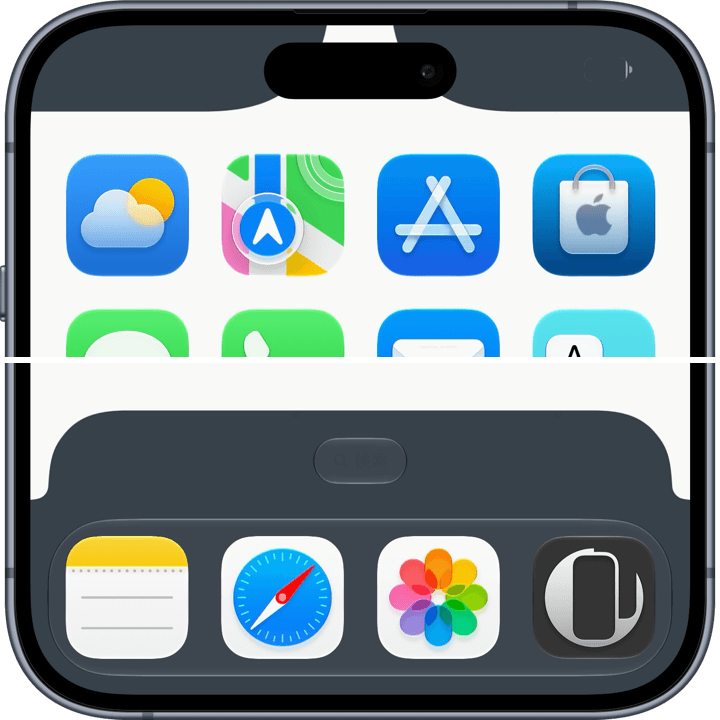
1320×3002
Universal Wallpaper
Universal Wallpaper
How to Set
・▲・
・▲・
日本語
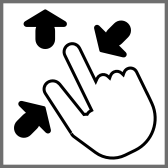
そっと少し、つまんで上げて、放す
自然光
自然光

ホーム画面:ぼかしオフ
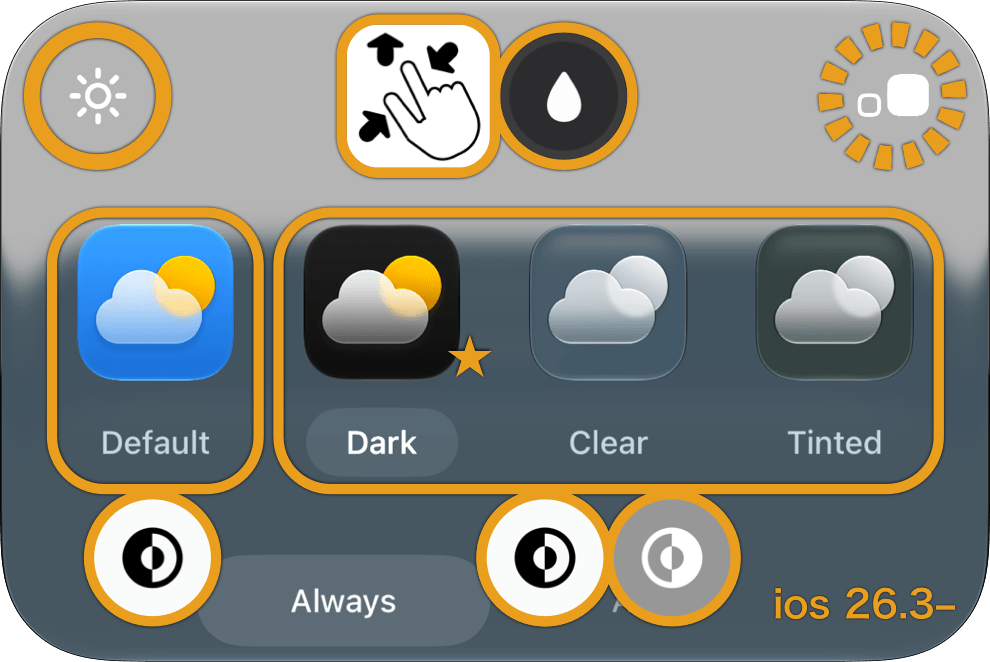
ホーム画面カスタマイズ
ホーム画面長押し > 編集 > カスタマイズ
iOS 26.3–
ホーム画面長押し > 編集 > カスタマイズ
iOS 26.3–
背景明るく・アイコン大 推奨


iOS26.1–26.2:ダークでもダークモード
iOS 26.0:ダークモード
iOS 26.0:ダークモード
english
Gently pinch up a little, then release
Natural
Natural
Home Screen: Blur off
Home Screen Customization
Long-press Home Screen > Edit
> Customize
iOS 26.3–
Long-press Home Screen > Edit
> Customize
iOS 26.3–
Brighter background
Large icon recommended
Large icon recommended
iOS 26.1–26.2: Dark Mode even with Dark
iOS 26.0: Dark Mode
iOS 26.0: Dark Mode
・▼・
タップ → 表示 → 長押し保存
Tap → View → Hold to save
タップ → 表示 → 長押し保存
Tap → View → Hold to save

Gray

Blue

Green

Plum

Brown
👀
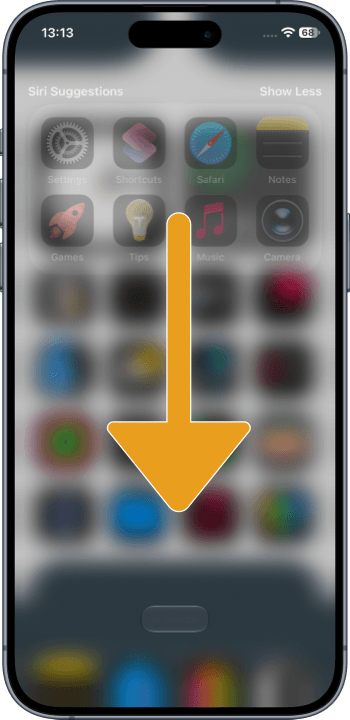
下にスワイプでステータス表示。
View status by swiping down.
下にスワイプでステータス表示。
View status by swiping down.
★
- そっと少しピンチイン ▶︎ 少し上に上げて ▶︎ 指を放すと、自動的に左右いっぱい下ゾロエの位置に戻ってきます。とくにiOS 27以降のApple Intelligence対応機種ではピンチインし過ぎると「拡張」がはたらくので、その手前で止めてください。「拡張」に入ってしまったらキャンセルしてやり直す必要があります。
- ロック画面ではiOSのバージョンや設定、通知の有無によって壁紙の明るさが変わるため、ステータスは見えたり見えなかったりします。
- ロック画面に設定したときは、一度ホーム画面に行くまで文字の色は変わりません。
- 壁紙のぼかしがオンになっていると背景の色が変わります。ホーム画面長押し > 壁紙を編集 > 💧アイコンを暗く
- 透明度を下げるがオンになっているとボタンの色が合いません。設定アプリ > アクセシビリティ > 画面表示とテキストサイズ > 透明度を下げる:オフ
- コントラストを上げるがオンになっているとボタンの色は合いません。設定アプリ > アクセシビリティ > 画面表示とテキストサイズ > コントラストを上げる:オフ
- iOS 16以降のiPhoneでは壁紙を設定する時の表示位置がまちまちです。さらにiOS 17–26では壁紙を動かすと自動補完で上部がぼかされることがあります。これらをかいくぐって全画面表示にするため、超縦長壁紙を上にスワイプして設定する仕様にしました(iOSのバージョン、機種、絵柄の相性によってはぼかしを避けられないこともあるかもしれませんが、iOS 27で自動補完は廃止されました)。壁紙上部はカットされ、表示位置はすべての機種で下ゾロエになります。
- 画像形式をWebPにして高品質軽量化を図っています。iOS 14以降で表示できます。
- Gently pinch in a little ▶︎ lift up a little ▶︎ release your fingers, and it’ll automatically snap back to the bottom-aligned, full-width position. On iOS 27+ Apple Intelligence–compatible devices especially, pinching in too far triggers “Extend,” so stop just short of that point. If you do trigger “Extend,” you’ll need to cancel and start over.
- On the Lock Screen, wallpaper brightness shifts depending on iOS versions, settings and whether notifications are present, so the status bar may or may not be visible.
- When set as the Lock Screen, the text color won’t change until you navigate to the Home Screen.
- When wallpaper blur is on, the background color changes. Home Screen long-press > Edit Wallpaper > turn the 💧 icon dark.
- If Reduce Transparency is on, the button color won’t match. Settings app > Accessibility > Display & Text Size > Reduce Transparency: Off
- When Increase Contrast is on, the button color won’t match. Settings app > Accessibility > Display & Text Size > Increase Contrast: Off
- On iPhone running iOS 16 or later, the wallpaper’s display position varies when you set it. In addition, on iOS 17–26, moving the wallpaper can trigger Auto-Extend, which blurs the top area. To work around this and achieve a full-screen display, this wallpaper is designed as an extra-tall image that you swipe upward to set (depending on the iOS version, device model, and image composition, the blur may not always be avoidable — though Auto-Extend is removed in iOS 27). The top of the wallpaper will be cropped, and the display position will be bottom-aligned on all devices.
- The image format is WebP to make it high quality and lightweight. iOS 14 or later can display it.
文字の色を壁紙でコントロールして、背景の色を文字に合わせて、両者を同じ色にします。
iPhoneでは壁紙が十分に明るいとホーム画面の文字が黒くなります。ただし真っ黒ではなくて、壁紙の色を反映した暗い色です。iOS 26以降はドックの上の検索ボタンもほぼ同じ色になります。
黒文字をキープするために背景の大部分は真っ白です。全面に敷くとなると淡い色でも白文字になります。
デザインは最初のFace ID機iPhone Xのノッチ(世代によって少しずつ形が違います)をトレースした素材から作りました。ジョナサン・アイブオリジナルデザインへのオマージュです。
By controlling the text color through the wallpaper and matching the background color to the text, the two become the same color.
On iPhone, when the wallpaper is bright enough, the text on the Home Screen turns black. Not pure black, though — a dark color that reflects the wallpaper’s own color. From iOS 26 onward, the search button above the Dock takes on nearly the same color too.
To keep the text black, most of the background is pure white. If applied across the whole surface, even a pale color would push the text to white instead.
The design was built from a traced element of the notch on the original Face ID iPhone, the iPhone X (the shape varies slightly by generation). It’s a homage to Jony Ive’s original design.
iPhoneでは壁紙が十分に明るいとホーム画面の文字が黒くなります。ただし真っ黒ではなくて、壁紙の色を反映した暗い色です。iOS 26以降はドックの上の検索ボタンもほぼ同じ色になります。
黒文字をキープするために背景の大部分は真っ白です。全面に敷くとなると淡い色でも白文字になります。
デザインは最初のFace ID機iPhone Xのノッチ(世代によって少しずつ形が違います)をトレースした素材から作りました。ジョナサン・アイブオリジナルデザインへのオマージュです。
By controlling the text color through the wallpaper and matching the background color to the text, the two become the same color.
On iPhone, when the wallpaper is bright enough, the text on the Home Screen turns black. Not pure black, though — a dark color that reflects the wallpaper’s own color. From iOS 26 onward, the search button above the Dock takes on nearly the same color too.
To keep the text black, most of the background is pure white. If applied across the whole surface, even a pale color would push the text to white instead.
The design was built from a traced element of the notch on the original Face ID iPhone, the iPhone X (the shape varies slightly by generation). It’s a homage to Jony Ive’s original design.