ブラックブラックニンジャ壁紙
2
Black Black Ninja
iOS 26.2–26.x
iPhone Air/17 Pro Max/17 Pro/17/17e/
16 Pro Max/16 Pro/16 Plus/16/16e/
15 Pro Max/15 Pro/15 Plus/15/
14 Pro Max/14 Pro/14 Plus/14/
13 Pro Max/13 Pro/13/13 mini/
12 Pro Max/12 Pro/12/12 mini/
11 Pro Max/11 Pro/11/SE 3/SE 2
・▲・ iPhone=?iOS=? ・▼・
iPhone Air/17 Pro Max/17 Pro/17/17e/
16 Pro Max/16 Pro/16 Plus/16/16e/
15 Pro Max/15 Pro/15 Plus/15/
14 Pro Max/14 Pro/14 Plus/14/
13 Pro Max/13 Pro/13/13 mini/
12 Pro Max/12 Pro/12/12 mini/
11 Pro Max/11 Pro/11/SE 3/SE 2
・▲・ iPhone=?iOS=? ・▼・
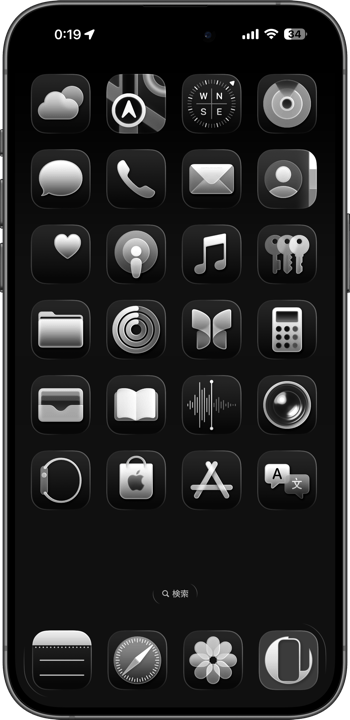
Face ID iPhoneのダイナミックアイランドやノッチも黒いグラデーションで隠します。iPhone 14以降では傾きでドックが見え隠れ、iPhone 13以前では部分的にドックを隠し、SEではロック解除とアプリを閉じた時にドックが見えなくなり傾けると見えます(iOS 26.3以降ではSEのリキッドグラスが固定)。
It also hides the Dynamic Island or notch on Face ID iPhone with a black gradient. On iPhone 14 and later, the Dock appears and disappears with tilt. On iPhone 13 and earlier, it’s partially hidden. On SE, the Dock disappears when unlocking or closing an app, and reappears when tilted (In iOS 26.3 and later, SE's Liquid Glass is fixed).
It also hides the Dynamic Island or notch on Face ID iPhone with a black gradient. On iPhone 14 and later, the Dock appears and disappears with tilt. On iPhone 13 and earlier, it’s partially hidden. On SE, the Dock disappears when unlocking or closing an app, and reappears when tilted (In iOS 26.3 and later, SE's Liquid Glass is fixed).
How to Set
・▲・
・▲・

日本語
設定時に動かさない・自然光
ホーム画面:ぼかしオフ
ホーム画面:ぼかしオフ


english
Don't move it on setup; Natural
Home: Blur off
Home: Blur off
Home Screen Customization:
Tap & hold Home Screen > Edit > Customize
Default → Dark Mode
Customized → Either way
★ Dark; Auto → Same as Default
Brighter background

日本語
設定時に動かさない・自然光
ホーム画面:ぼかしオフ
ホーム画面:ぼかしオフ
english
Don't move it on setup; Natural
Home: Blur off
Home: Blur off
Home Screen Customization:
Tap & hold Home Screen > Edit > Customize
Default/Dark → Dark Mode
Clear/Tinted → Either way
Brighter background
-▼-
ダイレクトに長押し保存
Hold to save directly
ダイレクトに長押し保存
Hold to save directly

★
- 壁紙のぼかしがオンになっていると背景の明るさが変わります。ホーム画面長押し > 壁紙を編集 > 💧アイコンを暗く
- 壁紙を設定後にホーム画面をカスタマイズするとドックの色が変わることがありますが、画面を切り替えると戻ります。
- コントロールセンターの「透明度を下げる」ボタンが効かなくなったときはiPhoneを再起動してください。
- コントラストを上げるがオンになっているとドックに白い縁が付きます。設定アプリ > アクセシビリティ > 画面表示とテキストサイズ > コントラストを上げる:オフ
- 視差効果を減らすがオンになっているとリキッドグラスの傾きエフェクトがドックに働かないためiPhone 14以降でも消えて見えることはありません。設定 > アクセシビリティ > 動作 > 視差効果を減らす:オフ
- 低電力モードがオンになっているとリキッドグラスの傾きエフェクトがドックに働かないためiPhone 14以降でも消えて見えることはありません。
- スマート反転など、その他の視覚アクセシビリティ機能(Appleサポート)をオンにしてもドックの色が変わることがあります。
- このページでは9×16ピクセルの壁紙を、保存しやすいように160x280ピクセル相当に引き伸ばして表示しています。
- When wallpaper blur is on, the background brightness changes. Home Screen long-press > Edit Wallpaper > turn the 💧 icon dark.
- After setting a wallpaper, customizing the Home Screen may change the Dock’s color, but it reverts when switching screens.
- If the "Reduce Transparency" button in Control Center stops responding, restart your iPhone.
- When Increase Contrast is on, the Dock gets a white edge. Settings app > Accessibility > Display & Text Size > Increase Contrast: Off
- When Reduce Motion is on, the Liquid Glass tilt effect does not apply to the Dock, so it never appears to disappear, even on iPhone 14 and later. Settings > Accessibility > Motion > Reduce Motion: Off
- When Low Power Mode is on, the Liquid Glass tilt effect does not apply to the Dock, so it never appears to disappear, even on iPhone 14 and later.
- When features like Smart Invert or other visual accessibility options (Apple Support) are on, the Dock color may also change.
- The 9x16 pixel wallpapers on this page are stretched to the equivalent of 160x280 pixels to make them easier to save.
iPhoneでは背景が一定以上の明るさの時にドックはそれより暗く、一定以下の明るさではそれより明るくなり、その中間では同じ色になります。
この壁紙はダークモードで透明度を下げるをオンにしたドックと検索ボタンに合わせました。
iPhone 14 以降では、デバイスの傾きを検知してリキッドグラスエフェクトが変化するので、ドックの境界線が見えたり隠れたりします。
さらに画面上部からの黒いグラデーションでダイナミックアイランドやノッチを自然に隠します。バンディングというグラデーションの縞模様が出るのを防ぐために、高さ16ピクセルというマイクロサイズとしています。実はiOSは小さめの壁紙が設定された時に描画を補足しています。よほど画質が悪くない限りサイズを考えなくてもなんとかなっているのはそのおかげ。補足にも限度はありますが、低画質を超えて極端な小ささになると画像データでは作れないほど(画面は綺麗でもスクリーンショットではバンディングが出ることもあります)綺麗なグラデーションになるのです。
On iPhone, when the background is above a certain brightness, the Dock becomes darker than the background, and when it's below a certain brightness, the Dock becomes lighter. In between, they are the same color.
This wallpaper is designed to match the Dock and Search button with Dark Mode and Reduce Transparency turned on.
On iPhone 14 and later, the device detects tilt and the Liquid Glass effect shifts, causing the Dock’s border to appear and disappear.
It also uses a black gradient from the top to naturally hide the Dynamic Island or notch. To prevent banding—visible stripes in gradients—the height is kept to a micro-size of just 16 pixels. In fact, when a smaller wallpaper is applied, iOS supplements the rendering. That’s why wallpapers generally look fine without worrying too much about size, as long as the quality isn’t too poor. The supplement has its limits, but when pushed to the extreme with very low resolution, iOS produces gradients so smooth that they can’t even be represented in the image data itself—sometimes the screen looks flawless, yet banding appears in screenshots.
この壁紙はダークモードで透明度を下げるをオンにしたドックと検索ボタンに合わせました。
iPhone 14 以降では、デバイスの傾きを検知してリキッドグラスエフェクトが変化するので、ドックの境界線が見えたり隠れたりします。
さらに画面上部からの黒いグラデーションでダイナミックアイランドやノッチを自然に隠します。バンディングというグラデーションの縞模様が出るのを防ぐために、高さ16ピクセルというマイクロサイズとしています。実はiOSは小さめの壁紙が設定された時に描画を補足しています。よほど画質が悪くない限りサイズを考えなくてもなんとかなっているのはそのおかげ。補足にも限度はありますが、低画質を超えて極端な小ささになると画像データでは作れないほど(画面は綺麗でもスクリーンショットではバンディングが出ることもあります)綺麗なグラデーションになるのです。
On iPhone, when the background is above a certain brightness, the Dock becomes darker than the background, and when it's below a certain brightness, the Dock becomes lighter. In between, they are the same color.
This wallpaper is designed to match the Dock and Search button with Dark Mode and Reduce Transparency turned on.
On iPhone 14 and later, the device detects tilt and the Liquid Glass effect shifts, causing the Dock’s border to appear and disappear.
It also uses a black gradient from the top to naturally hide the Dynamic Island or notch. To prevent banding—visible stripes in gradients—the height is kept to a micro-size of just 16 pixels. In fact, when a smaller wallpaper is applied, iOS supplements the rendering. That’s why wallpapers generally look fine without worrying too much about size, as long as the quality isn’t too poor. The supplement has its limits, but when pushed to the extreme with very low resolution, iOS produces gradients so smooth that they can’t even be represented in the image data itself—sometimes the screen looks flawless, yet banding appears in screenshots.