壁紙設定マップ
Wallpaper Setup Map
iOS 26–
➜ English
カンタン設定 iOS 26–
- ロック画面長押し > カスタマイズ → 小窓タップで壁紙を編集 / +(追加)/ ↔︎(切り替え)/↑(削除)
- ホーム画面長押し > 左上*のボタン > カスタマイズ / 壁紙を編集(*SEでは右上)
⓿ インデックス
🗺️ iPhone壁紙の設定ダンジョンを俯瞰する5つの地図。
① 設定開始 ② ロック画面 ③ ホーム画面 ④ カスタマイズ ⑤ 削除
青枠の画像をタップすると番号のマップに飛べます。
① 設定開始 ② ロック画面 ③ ホーム画面 ④ カスタマイズ ⑤ 削除
青枠の画像をタップすると番号のマップに飛べます。

① 設定開始マップ
🚪🚪🚪🚪 入口は4つ。🌻 写真アプリ、⚙️ 設定アプリ、🔒 ロック画面の長押し、🏠 ホーム画面の長押し。実はそれぞれ行ける場所が違います。

① 開始のトラップ
・▼・
分からなくなったらまた来てくださいね。
分からなくなったらまた来てくださいね。
- 🌻 写真アプリからできること:新しいペアの追加だけ。ロック画面の「壁紙」と「カスタマイズ」→ホーム画面の「壁紙」の順です。
- ⚙️ 設定アプリからできること:ペアの「追加」と「変更」、ロック画面の「壁紙」と「カスタマイズ」、ホーム画面の「壁紙」。 できないこと:⚠️ ペアの「削除」 ⚠️ ホーム画面の「カスタマイズ」。
- 🔒 ロック画面長押しからできること:新しいペアの「追加」と「変更」、ロック画面の「壁紙」と「カスタマイズ」。 独占機能:📍 壁紙のペアの削除。 できないこと:⚠️ 後からホーム画面の壁紙だけを変えること ⚠️ ホーム画面の「カスタマイズ」。
- 🏠 ホーム画面長押しからできること:ホーム画面の壁紙の変更。 独占機能: 📍 ホーム画面のカスタマイズ。 できないこと:⚠️ ペアの変更 ⚠️ ロック画面の全ての設定。
- デフォルト壁紙にするには:設定アプリかロック画面長押しで新しいペアの追加から選択します。ダウンロードが必要な場合もあります。
② ロック画面マップ
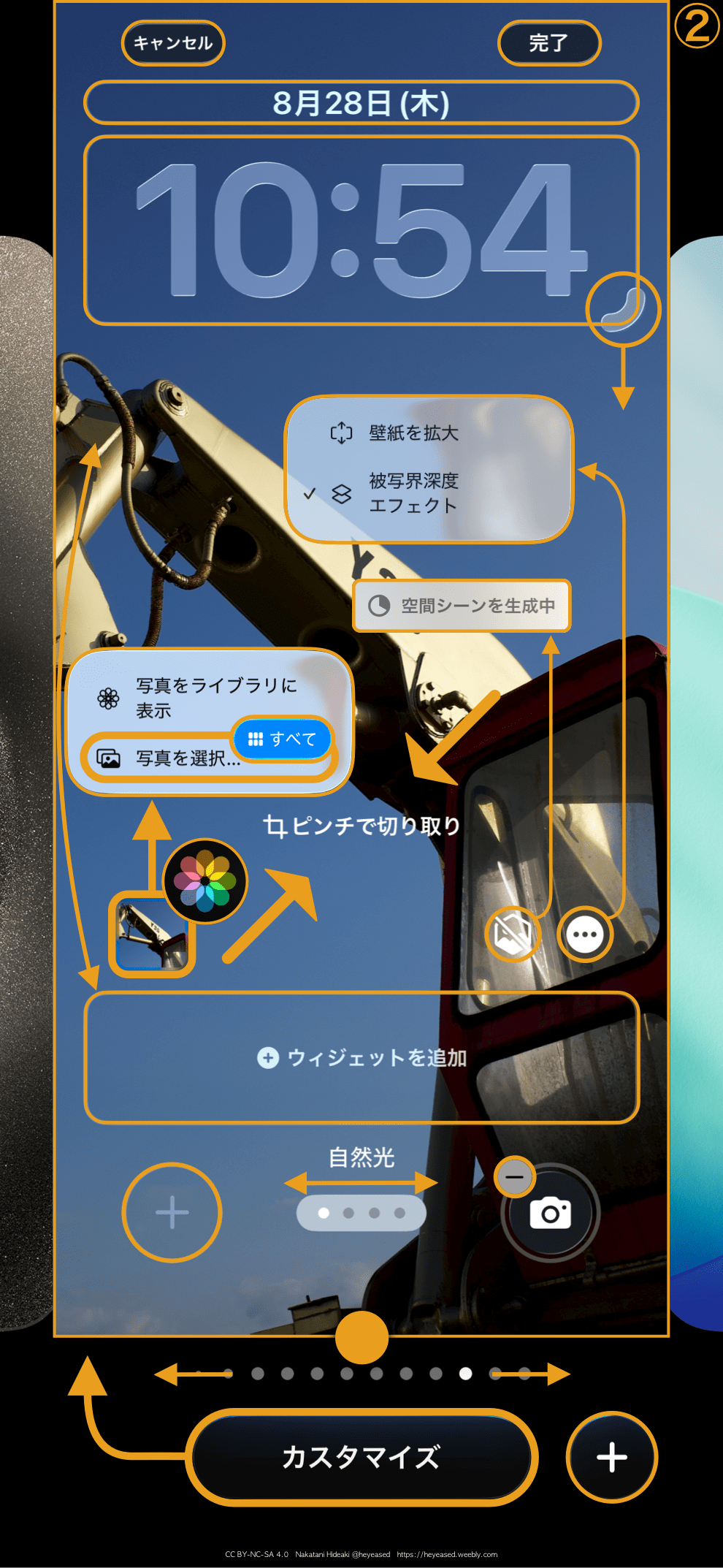
🔒 ロック画面の長押しは気分や環境で壁紙を着せ替えるのに活用できますよね。ウィジェットも個別設定なのが便利だったり面倒だったり?
② ロック画面のトラップ
・▼・
困った時は来てくださいね。
困った時は来てくださいね。
- 設定がややこしい→ 「写真」の小窓からアルバムの「すべて」に行って選ぶだけでも十分です。
- ホーム画面の壁紙に行けない→ 新しい壁紙を追加する時だけ、ロック画面からホーム画面の壁紙の編集に入れます。それ以外はホーム画面長押し(または設定)から始めます。
- 知らないうちに壁紙のペアが増えている→ 写真アプリから設定を始めると、自動的に新しいペアが作られます。
- 壁紙を他のペアに変えたら設定が変わった→ 壁紙とカスタマイズの設定はそのペアだけに適用されます。
- 「写真」の小窓が見当たらない→ 小窓は設定中の壁紙を表示するので、中段部分が黒い壁紙を使っているとまったく見えません。ウィジェットなどで位置が変わっていることもあり、ホーム画面では元々の場所も違います。見えない時はとにかくその辺をタップして当ててください。
- 「被写界深度エフェクト(時計の前に画像)」と「空間シーン(擬似3D)」のマークが出てこない→ iPhoneが可能と判断した壁紙でだけ自動的に表示されます。
- 3Dにしたら時計が隠れなくなった→ 空間シーンをオンにすると被写界深度エフェクトが無効になることがあります。
- 時計を大きく出来ない→ 時計はデフォルトフォントのみ大きくできます。
- 通知が出てる時にロック画面の壁紙が暗くなるのを防ぎたい→ iOS 26.1以降ならリキッドグラスの調節で可能です。
- 写真シャッフルのトリガーを変えたい→ 通常なら被写界深度エフェクトなどが出てくる(・・・)で変更できます。
- 設定した後で日付とウィジェットの位置がずれる→ 設定中の位置は設定後の画面とは少し異なります。
- 「写真をライブラリに表示」をタップすると壁紙設定が中断された→ 写真アプリの現在設定中の画像に飛ぶ機能です。
- 壁紙の上がぼやける→ 壁紙を移動させると上がぼかされることがあります。対処法 → 上のぼかしを避ける方法
③ ホーム画面マップ
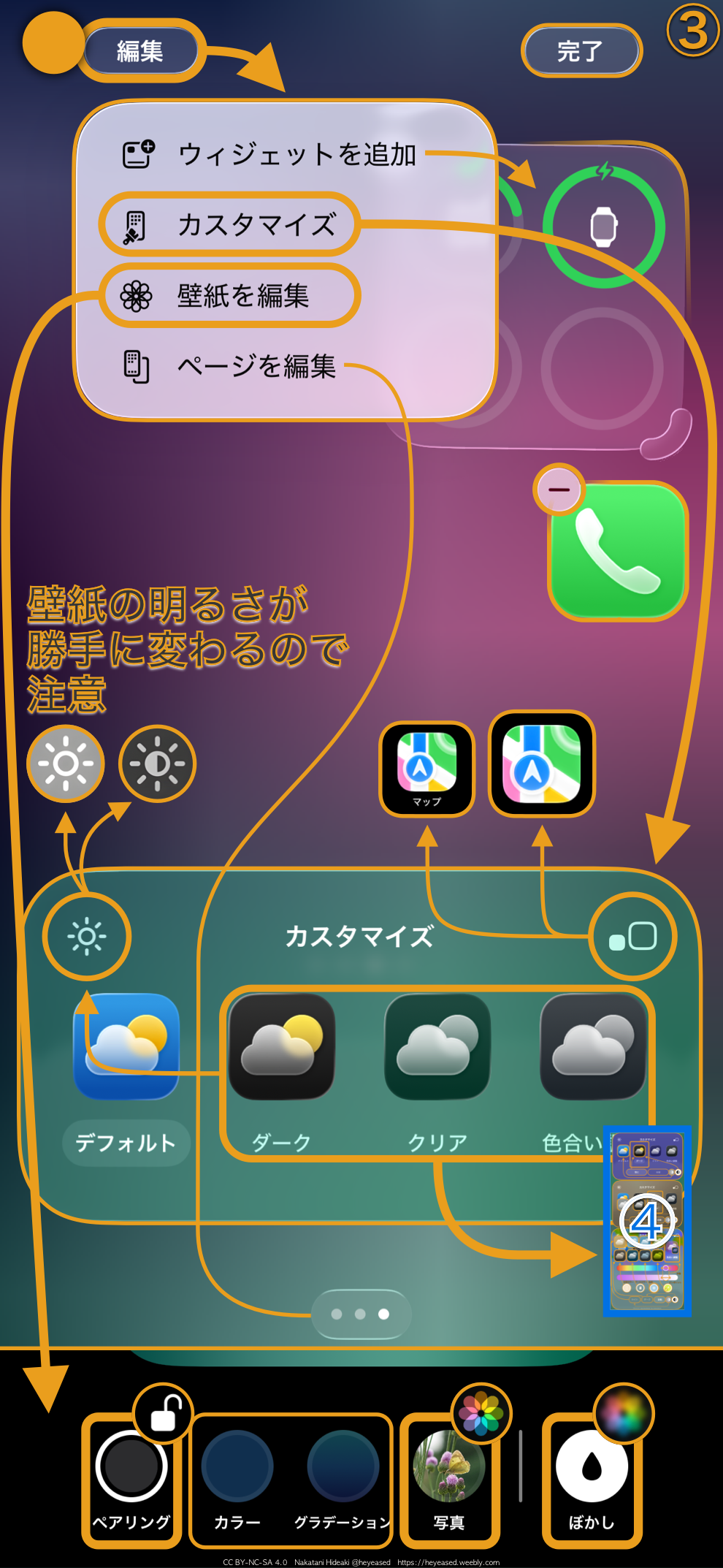
🏠 ホーム画面の長押しはアイコンを入れ替えるだけじゃありません。ホーム画面だけの壁紙の変更や調整もここから。でもぶっちゃけカスタマイズはやらなくても困りません。
③ ホーム画面のトラップ
・▼・
困った時は来てくださいね。
困った時は来てくださいね。
- 設定がややこしい→ 「壁紙を編集」>「写真」の設定方法はロック画面の「写真」の下位互換です。後は次の1、2とぼかしボタンだけ把握しておきましょう。
- ロック画面とペアリングされていたらホーム画面の壁紙もロック画面の変更で一緒に変わります。
- ロック画面とは違う壁紙をホーム画面に設定するには「壁紙を編集」からペアリング以外を選択します。
- ロック画面からホーム画面の壁紙の変更ができなくなった→ iOS 18までと違って、iOS 26以降ではロック画面からホーム画面の壁紙に行けるのは追加時だけになりました。ホーム画面の壁紙の変更はホーム画面の長押し(または設定)から始めます。
- 壁紙が勝手に暗く(明るく)なる→ 壁紙の明るさはカスタマイズをいじるといちいち自動で変更されます。左上の明るさボタンで確認して最後に好きなように設定してください。
- 壁紙の自動明暗ボタンの基準は?→ デフォルトを選択すると壁紙は明るく、クリア・色合い調整を選択すると暗くなります。 ダークの場合は「常に」を選択すると暗く、「自動」のときは明るくなります。
- 壁紙のペアの変更ができない→ ペアの変更はロック画面の長押しまたは設定アプリから行います。
- アイコンを移動できない所がある→ ホーム画面のアイコンは間を空けて好きに置けますが、左右のセンターに置くことはできません。ドックでは逆に強制的にセンターに置かれます。
- 壁紙の上がぼやける→ 壁紙を移動させると上がぼかされることがあります。対処法 → 上のぼかしを避ける方法
④ カスタマイズマップ
👔 ここまで来ると画面ファッション上級者向けです。見た目全振りコースへようこそ。

④ カスタマイズのトラップ
・▲・
アイコンが分かりにくいですよね。
アイコンが分かりにくいですよね。
- 「自動」って何?→ 全体設定のライトモードかダークモードかを反映します。
- 色合い調整の本体カラーって?→ iPhoneの本体に合わせた色を出してくれます(上のサンプルはゴールド)。
- 色合い調整のケースカラーって?→ 純正MagSafeケースの色を検知します。純正ケースを付けていなければ無彩色になります(その状態で明るさスライダーを動かすとアイコンが全部のっぺらぼうになります(iOS 26.1で修正済み)。 直すにはしばらく待つ必要があります)。
- 設定アプリや共有機能のアイコンの色が変わった→ 全部そのペアのホーム画面カスタマイズに従います。
⑤ 削除マップ
🗑️ 画面のペアが増えすぎると選ぶのも大変になってくるので使わない壁紙は整理しましょう。いつものロック画面長押し横スクロールから。

⑤ 削除のトラップ
・▲・
近道はないんです。
近道はないんです。
- 一つ一つ消すのが面倒→ まとめては消せません。一つずつ消しましょう。なので写真アプリからの設定には注意です。あれは変更ではなく追加です。
- 設定からは削除できない?→ 壁紙のペアの削除はロック画面の長押しからしかできません。
画面の基本
iOS 27以降の対応機種でSiri AIを有効にすると、画面中央上からのスワイプでSiriが起動します。その場合、ホーム画面で通知センターを呼び出せるのは画面左上からに限られます。


Quick Setup iOS 26–
- Long-press Lock Screen > Customize → tap thumbnail to edit wallpaper / + (add) / ↔︎ (switch) /↑(delete)
- Long-press Home Screen > top-left* button > Customize / Edit Wallpaper (*top-right on SE)
⓿ INDEX
🗺️ Five overhead maps of the iPhone wallpaper-setup dungeon.
① Setup Start ② Lock Screen ③ Home Screen ④ Customize ⑤ Remove
When you tap the blue-framed image, it takes you to the corresponding numbered map.
① Setup Start ② Lock Screen ③ Home Screen ④ Customize ⑤ Remove
When you tap the blue-framed image, it takes you to the corresponding numbered map.

① Setup Start Map
🚪🚪🚪🚪 Four ways in. 🌻 Photos app, ⚙️ Settings app, 🔒 long-press the Lock Screen, 🏠 long-press the Home Screen. Turns out each one takes you somewhere different.

① start trap
・▼・
Come back here if you get lost.
Come back here if you get lost.
- 🌻 From the Photos: only adding a new pair. Order is Lock Screen “wallpaper” and “customize” → then Home Screen “wallpaper.”
- ⚙️ From the Settings: “add” and “change” pairs, Lock Screen “wallpaper” and “customize,” Home Screen “wallpaper.” Can’t do: ⚠️ ”delete” a pair, ⚠️ Home Screen “customize.”
- 🔒 From the Lock Screen long-press: “add” and “change” pairs, Lock Screen “wallpaper” and “customize.” Exclusive: 📍 Delete a wallpaper pair. Can’t do: ⚠️ change only the Home Screen wallpaper afterward, ⚠️ Home Screen “customize.”
- 🏠 From a Home Screen long-press: change the Home Screen wallpaper. Exclusive: Home Screen “customize.” Can’t do: ⚠️change pairs, ⚠️anything with the Lock Screen.
- To set a default wallpaper: choose it from “add a new pair” in either the Settings app or a Lock Screen long-press. Some may require downloading first.
② Lock Screen Map
🔒 Long-pressing the Lock Screen is great for swapping wallpapers based on mood or environment. Separate widget setups can be wonderfully convenient… or a bit of extra work.
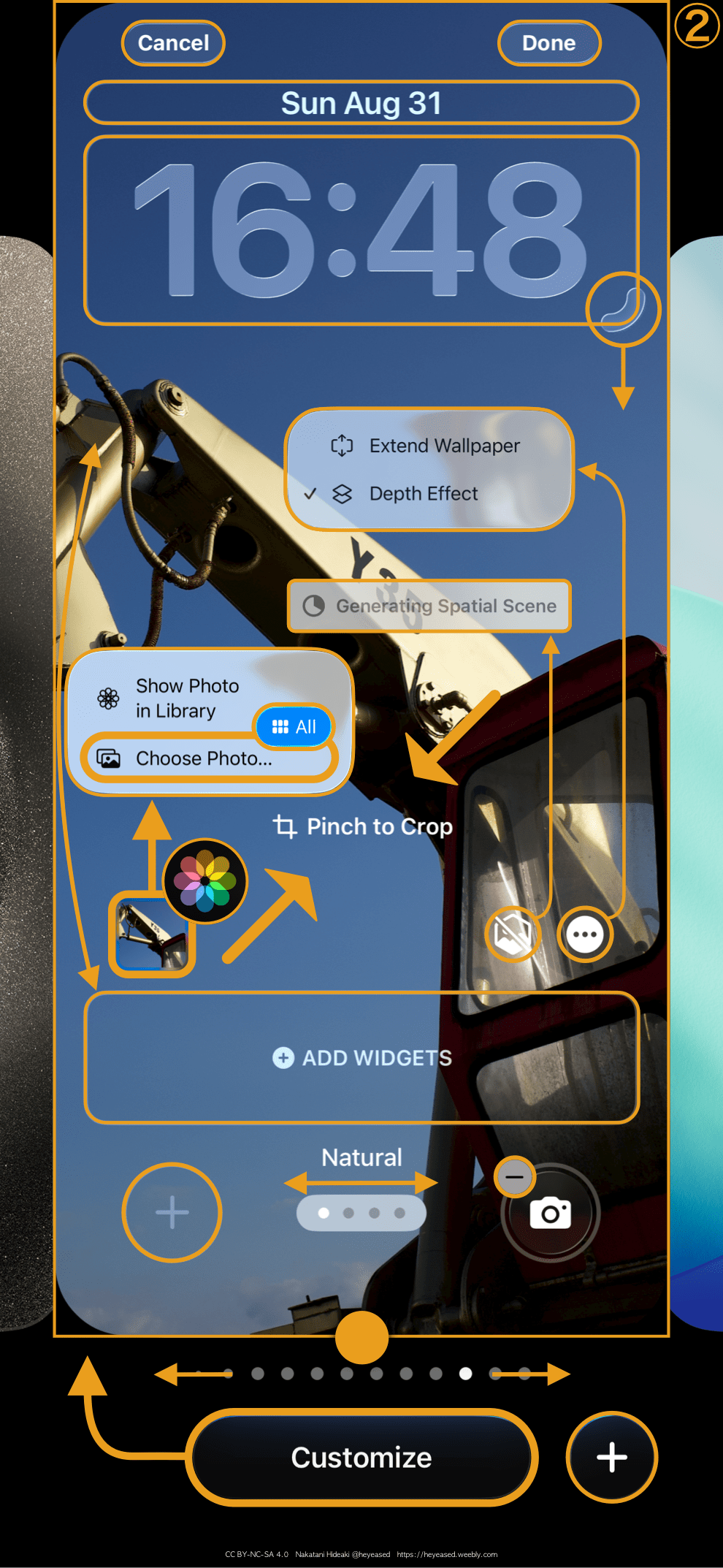
② lock screen trap
・▼・
I’ll be here if you need a hand.
I’ll be here if you need a hand.
- Settings are a bit complicated → Simply going to "All" in the album from the "Photos" widget is sufficient.
- Can't go the Home Screen wallpaper → You can only edit the Home Screen wallpaper from the Lock Screen when adding a new wallpaper. Otherwise, you can start by long-pressing the Home screen (or Settings).
- Unintentionally created new wallpaper pairs → Starting settings from the Photos automatically creates new pairs.
- Some settings changed after switching to another pair → Wallpaper and customization settings apply only to that specific pair.
- Can't find the "Photos" widget → The widget displays the currently set wallpaper, so if you're using a black wallpaper in the middle section, it won't be visible at all. Its position may also change due to widgets, and its original location on the Home screen is different. If you can't see it, just tap around that area to find it.
- The "Depth Effect (image in front of clock)" and "Spatial Scene (pseudo-3D)" icons don't appear → They only show automatically for wallpapers the iPhone determines are compatible.
- Clock no longer hides after enabling 3D → Turning on Spatial Scene can sometimes disable Depth Effect.
- Can't enlarge the clock → The clock can only be enlarged using the default font.
- The Lock Screen gets darker when notifications appear → If you’re on iOS 26.1 or later, you can prevent this by adjusting Liquid Glass.
- Want to change the Photo Shuffle trigger? → You can adjust it from the (・・・) menu, where options like Depth Effect normally appear.
- After setting, the date and widget positions are misaligned → The position during setup differs slightly from the post-setup screen.
- Tapping "Show Photo in Library" interrupted the wallpaper setup → This function navigates to the image currently being set in the Photos.
- The top of the wallpaper is blurred → Moving the wallpaper may cause the top to blur. Solution → How to Avoid Top Blur
③ Home Screen Map
🏠 Long-pressing the Home Screen isn’t just for moving icons. You can change or adjust the Home Screen–only wallpaper here too. But honestly, you won’t suffer much even if you skip customization.

③ home screen Trap
・▼・
I’ll be here if you need a hand.
I’ll be here if you need a hand.
- Settings are a bit complicated → The "Edit Wallpaper" > "Photos" setting way is backward compatible with the "Photos" setting on the Lock Screen. Just remember the following points 1 and 2, plus the Blur button.
- If paired with the Lock Screen, changing the Lock Screen wallpaper will also change the Home Screen wallpaper.
- To set a different wallpaper for the Home Screen than the Lock Screen, select an option other than "Pair" from "Edit Wallpaper."
- Can’t change the Home Screen wallpaper from the Lock Screen → Starting with iOS 26 and later, you can only access the Home Screen wallpaper from the Lock Screen when adding a new wallpaper. To change the Home Screen wallpaper later, start from a long-press on the Home Screen (or from Settings).
- Wallpaper automatically gets darker (brighter) → Wallpaper brightness changes automatically whenever you adjust the customization settings. Check the brightness button in the top-left corner and set it to your preference at the end.
- What determines the automatic brightness button's effect? → Selecting "Default" makes the wallpaper brighter. Choosing "Clear" or "Tinted" makes it darker. For Dark mode: "Always" keeps it dark; "Auto" makes it brighter.
- Can't change the wallpaper pairing → Pairing changes are done by long-pressing the Lock Screen or via the Settings app.
- Some icons won't move → You can freely place Home Screen icons with spacing, but they cannot be centered horizontally. Dock icons are forced to center.
- The top of the wallpaper is blurred → Moving the wallpaper may cause the top to blur. Solution → How to Avoid Top Blur
④ Customize Map
👔 This area is for the screen-fashion elite. Welcome to the "All-In on Aesthetics" course.

④ customization trap
・▲・
I know, the icons make zero sense.
I know, the icons make zero sense.
- What does "Auto" mean? → It reflects whether your overall settings are in Light Mode or Dark Mode.
- What is the "Body Color" in Tinted? → It displays a color matching your iPhone's body (the sample above is gold).
- What is the Case Color in Tinted? → It detects the color of the official MagSafe case. If no official case is attached, it becomes achromatic (in that state, moving the brightness slider makes all icons appear flat (fixed in iOS 26.1). To fix it, you need to wait a while).
- The colors of the Settings and Share function icons have changed → They all follow the customization of that pair on the Home Screen.
⑤ Remove Map
🗑️ When you have too many screen pairs, choosing between them becomes a chore. Clean up the wallpapers you don’t use—from the usual Lock Screen long-press and horizontal scroll.

⑤ delete trap
・▲・
There’s no shortcut for this, I’m afraid.
There’s no shortcut for this, I’m afraid.
- Removing them one by one is a hassle → You can't remove them all at once. Remove them one by one. So be careful with settings from the Photos. That's adding, not changing.
- Can't remove them from Settings? → You can only remove wallpaper pairs by long-pressing on the Lock Screen.
Screen Basics
On supported devices with Siri AI enabled in iOS 27 or later, swiping down from the top center of the screen launches Siri. In that case, on the Home Screen, the Notification Center can only be accessed by swiping down from the top left.