Mysterious iPhone Wallpaper
  • New
  • Notes
  • iOS
  • Help
  • About This Site
  • Privacy Policy

iOS

{ "@context": "https://schema.org", "@type": "HowTo", "name": "How to Set iPhone Wallpaper True — iOS 18", "alternateName": "真iPhone壁紙の設定方法 iOS 18", "url": "https://tt-t.com/heyeased/ios/ios-18", "datePublished": "2024-09-17", "description": "A complete guide to setting iPhone wallpapers on iOS 18 — covering things Apple doesn't mention. Includes Lock Screen and Home Screen wallpaper setup, Home Screen customization (Light, Dark, Auto, Tinted modes), Dock and folder color rules, and tips on wallpaper pairs, top blur prevention, and Display Zoom.", "inLanguage": ["ja", "en"], "isPartOf": { "@type": "WebSite", "name": "Mysterious iPhone Wallpaper", "url": "https://tt-t.com/heyeased/" }, "author": { "@type": "Person", "name": "Nakatani Hideaki", "alternateName": "中谷秀明", "sameAs": "https://x.com/heyeased" }, "license": "https://creativecommons.org/licenses/by-nc-sa/4.0/", "step": [ { "@type": "HowToSection", "position": 1, "name": "Wallpaper Setup — Entry Points", "description": "Tap and hold the Lock Screen, or go to Settings > Wallpaper. Tap Customize and select Lock Screen or Home Screen. Swipe horizontally to choose a wallpaper pair. All settings are saved per pair. To add a new pair, tap the ⊕ icon — also use ⊕ for default wallpapers and Photo Shuffle. Setting a wallpaper from the Photos share button automatically creates a new pair, which can accumulate without notice." }, { "@type": "HowToSection", "position": 2, "name": "A) Lock Screen Wallpaper and Customization", "itemListElement": [ { "@type": "HowToStep", "position": 1, "name": "Select a photo and adjust style", "text": "Select from Photos. Swipe horizontally to change the style (color tone). Pinch to zoom in or out. Note: on iOS 17 and later, moving the wallpaper during setup blurs the top. See https://tt-t.com/heyeased/ios/ios-182 for how to prevent this." }, { "@type": "HowToStep", "position": 2, "name": "Confirm or reset", "text": "'Show Photo in Library' cancels setup and jumps to the currently set image. 'Extend Wallpaper' resets the zoom. Depth Effect — showing the subject in front of the clock — appears automatically when iOS determines the image is compatible." }, { "@type": "HowToStep", "position": 3, "name": "Add widgets, change clock font, and configure buttons", "text": "Tap Done to finish. Optionally add or edit widgets, change the clock font, or modify Lock Screen buttons. Buttons can be removed with ⊖ and replaced or left blank with ⊕." } ] }, { "@type": "HowToSection", "position": 3, "name": "B) Home Screen Wallpaper", "itemListElement": [ { "@type": "HowToStep", "position": 1, "name": "Choose a Home Screen option", "text": "Three options are available: (1) Use the same wallpaper as the Lock Screen. (2) Use a solid color or gradient derived from the Lock Screen wallpaper. (3) Select a different wallpaper from Photos — this opens the same setup screen as the Lock Screen, without widget, clock, and button options." }, { "@type": "HowToStep", "position": 2, "name": "Toggle Home Screen blur", "text": "Toggle blur on or off for the Home Screen background, then tap Done." } ] }, { "@type": "HowToSection", "position": 4, "name": "Home Screen Customization", "description": "Tap and hold the Home Screen > Edit > Customize. Options: (1) Dim or Bright wallpaper brightness. (2) Icon size Small or Large — Large hides labels. (3) Light: brightens icons and widgets. (4) Dark: darkens icons and widgets. (5) Automatic: syncs brightness with the system Light/Dark Mode. (6) Tinted: unifies icon colors. Dark, Auto, and Tinted modes initially darken the wallpaper by default. To finish, tap the Home Screen or slide down the custom panel." }, { "@type": "HowToSection", "position": 5, "name": "Others", "description": "Deleting a wallpaper pair: tap and hold the Lock Screen > swipe up > tap the trash icon. Pairs must be deleted one at a time. Icon and widget placement: icons and widgets can be moved freely on iOS 18, but only to pre-designated grid positions — centering icons is not possible. Lock Screen misalignment: the date and widget positions shown during setup differ slightly from the final result. Initial wallpaper display area may appear unexpected before pinching to crop." } ], "mainEntityOfPage": { "@type": "FAQPage", "mainEntity": [ { "@type": "Question", "name": "What is the difference between setting a wallpaper from the Lock Screen and from the Photos app on iOS 18?", "acceptedAnswer": { "@type": "Answer", "text": "Setting a wallpaper from the Lock Screen long-press allows you to change the current pair or add a new one via the ⊕ icon. Setting from the Photos share button always creates a new pair automatically, regardless of intent. Using the Photos app repeatedly can result in a large number of accumulated pairs without realizing it." } }, { "@type": "Question", "name": "What determines the Dock and folder color on iOS 18?", "acceptedAnswer": { "@type": "Answer", "text": "On iOS 18, the Dock and folders are dark when either the system mode or Home Screen customization is set to Dark. They are light only when both the system and Home Screen customization are set to Light. Setting the system to Dark Mode and Home Screen customization to Light gives a dark Dock with bright icons. The reverse — a light Dock with dark icons — is not possible." } }, { "@type": "Question", "name": "What does the Tinted mode do in Home Screen customization on iOS 18?", "acceptedAnswer": { "@type": "Answer", "text": "Tinted mode in iOS 18 Home Screen customization applies a unified color tint to all icons and widgets, derived from the wallpaper. This is a feature introduced in iOS 18 and is not available in earlier versions. See https://tt-t.com/heyeased/ios/ios-18-tinted for detailed usage." } }, { "@type": "Question", "name": "Why does moving the wallpaper during setup blur the top on iOS 18?", "acceptedAnswer": { "@type": "Answer", "text": "On iOS 17 and later including iOS 18, moving or repositioning a wallpaper during the setup process causes the top area to blur with solid black or white. To avoid this, use a screenshot of the desired area and swipe up during setup rather than moving the image. See https://tt-t.com/heyeased/ios/ios-182 for the full guide." } }, { "@type": "Question", "name": "How do I delete a wallpaper pair on iOS 18?", "acceptedAnswer": { "@type": "Answer", "text": "Tap and hold the Lock Screen, swipe up on the pair you want to delete, and tap the trash icon. Pairs can only be deleted one at a time — batch deletion is not available." } } ] } }

iOS 18.2

12/12/2024

0 コメント


iPhoneで壁紙の上がぼかされるのを徹底的に避けるには?(iOS 18.2–)
How to Completely Avoid the Top Blur on iPhone Wallpapers (iOS 18.2–)


➜ English

​2025/9/16
iOS 26のアップデートで壁紙が下にズレた場合は、一度他の壁紙を設定してから元の壁紙に戻してください。そのまま上にスワイプすると必ずぼかされます。

2024/12/16追記あり
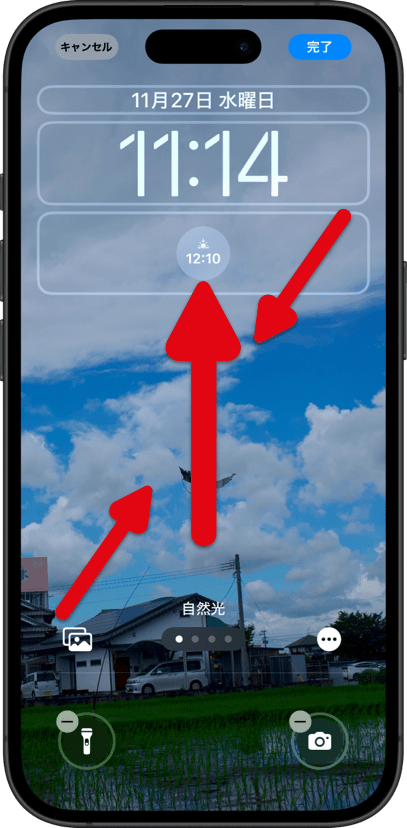
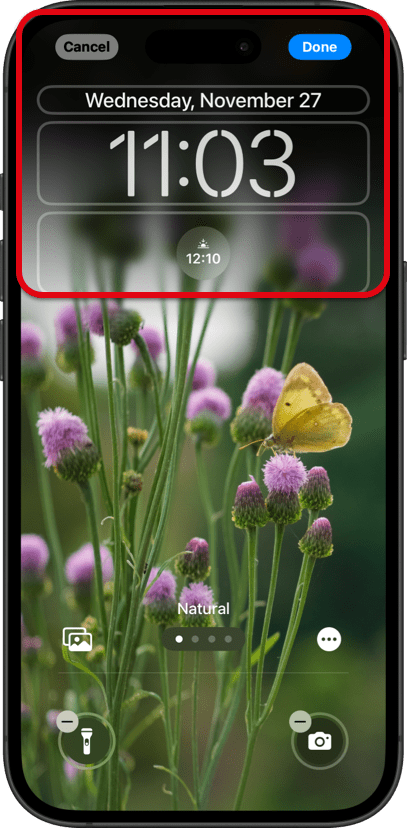
​iOS 17以降のiPhoneでは設定する時に壁紙を移動させると上部が真っ黒や真っ白にぼかされます。
182j0
これを避けて自由に切り取る方法がiOS 18.2でまたまた変更されました。なぜか自動補完が働かずに逆に移動させてもぼかせない写真もあるのですが、そうなる条件に見て分かる一貫性はありません。シンプルにバグかもしれません。


​大体うまくいく方法

スクリーンショットを壁紙にして、設定する時に上にスワイプします。
iOS 18.2では多くの機種で画面サイズ壁紙の上スワイプが復活しました(iOS17.1–18.1ではうまくいかない機種が多いです)。
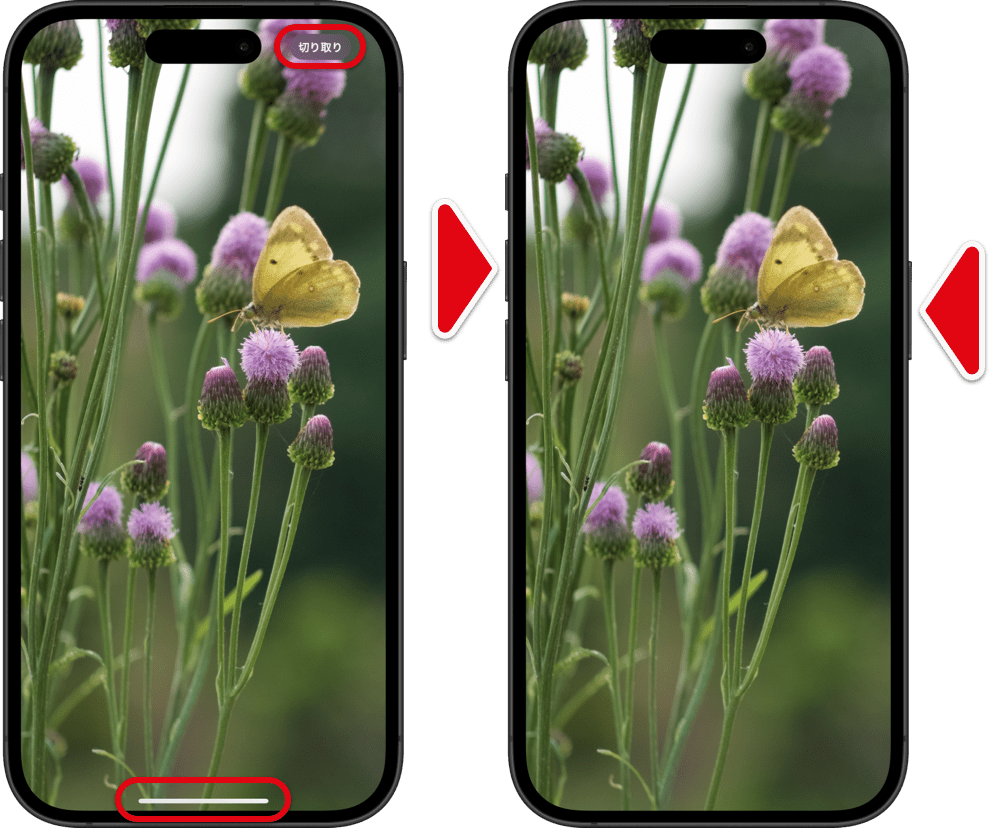
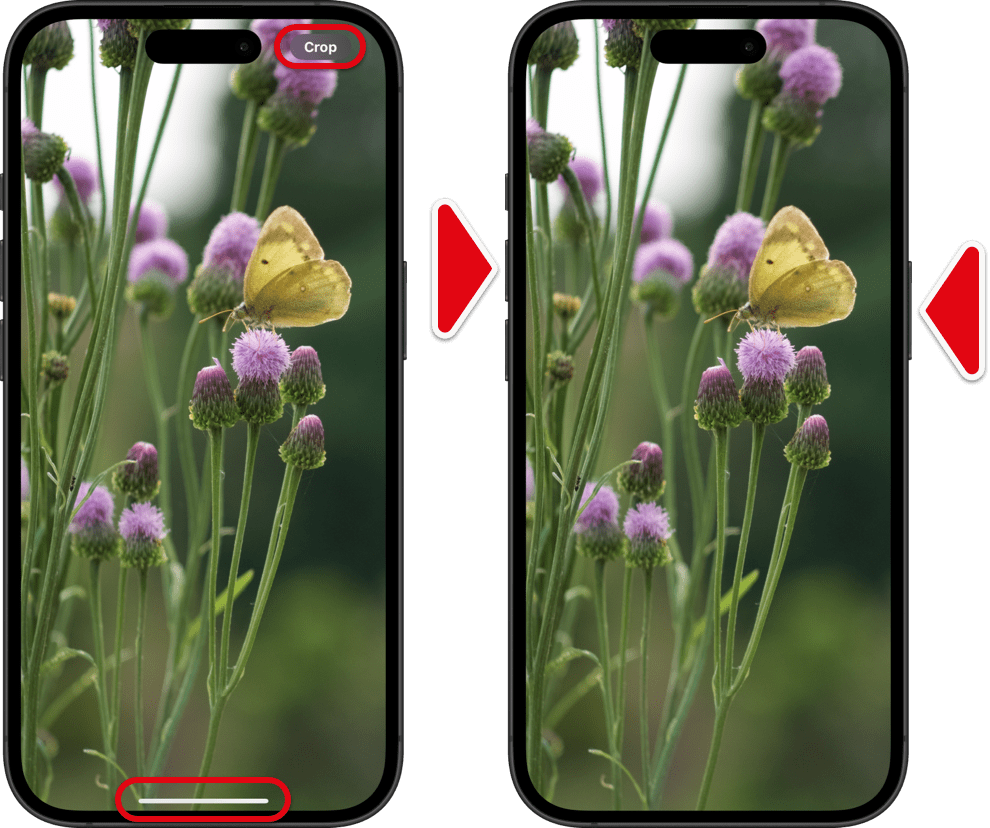
スクリーンショットの撮り方は以下のとおり。写真アプリで好きな範囲を表示させて、右上の「切り取り」や下のインジケーター(Face ID iPhone)が消えるのを待ちます。そこで音量大と電源ボタンを同時し。
182j1
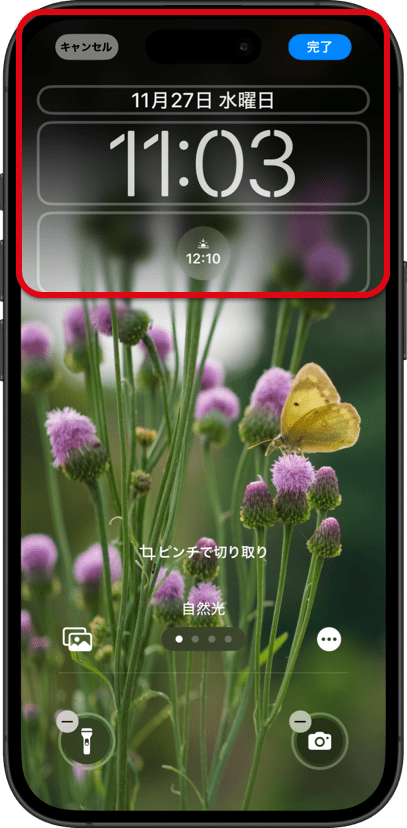
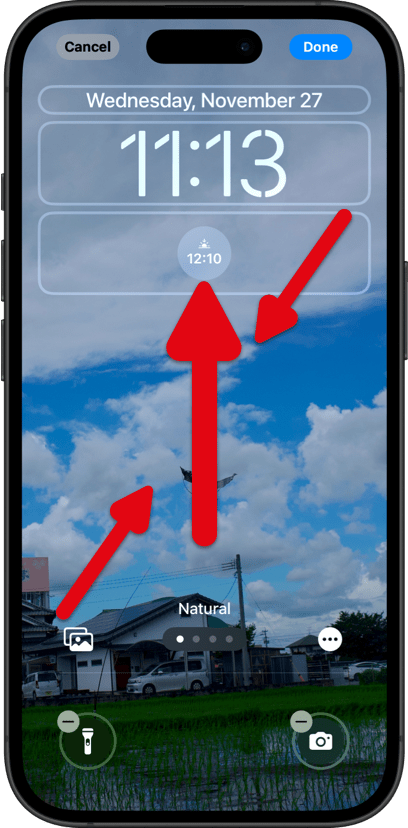
これを壁紙として設定する時に、ピンチインして上にスワイプします。
182j2
一点注意してください。設定時にはぼかしが消せないように見えても、設定後には消えている機種もあります。
基本的には写真アプリで壁紙サイズに切り取った画像でもいいのですが、機種によっては編集が壁紙に反映されないバグがあります。なのでスクリーンショットの方が確実なのです。
スクリーンショットや切り取りを使うのは画面サイズよりワイドな画像を使うとぼかしが生じたときにキャンセルできないからです。


​それでもボケる機種だったら

機種によっては画面サイズの壁紙ではぼかしをキャンセルできないこともあります。
その時は従来通り写真アプリで超縦長に切り取った壁紙を上にスワイプします。
➜ 改めて壁紙の上がぼかされる時の対処法
182j3


​追記
それでもダメなら

超縦長でないとぼかしをキャンセルできず、写真アプリの切り取りも反映されない機種では写真アプリだけではどうにもなりません。しかし策はあります。
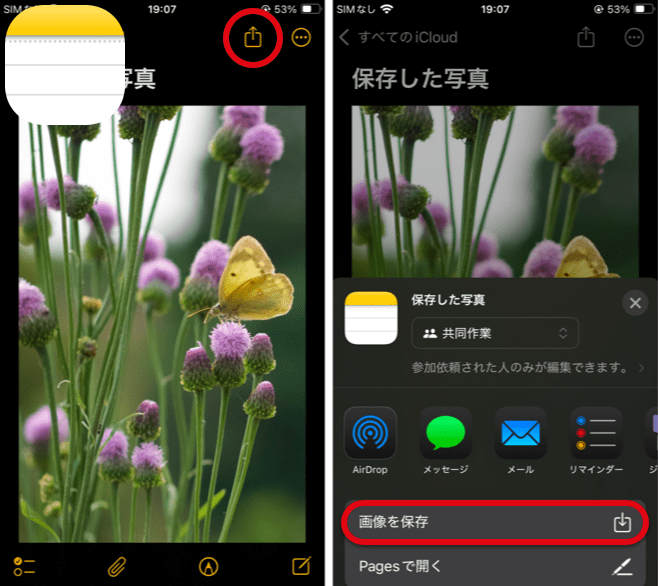
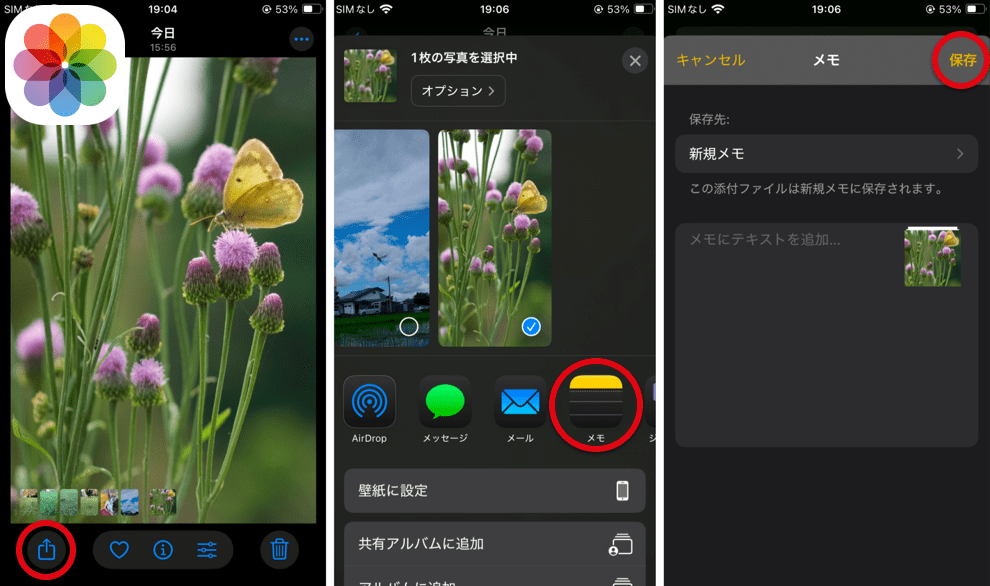
そのときはまず画像を超縦長に切り取った後で、写真アプリの共有ボタンからメモアプリに保存。
182j4-1
その画像をメモアプリの共有ボタンから写真アプリに戻します。
182j4-2
すると新しい画像からは元の構図が失われています。その新しい方を使って設定する時に上にスワイプしてください。
一度外に出して戻せばどんな方法でも新しい画像になっています。AirDropで他のデバイスを往復してもいいし、サードパーティの写真編集アプリを使ってもいいです。ただiPhone1台で無料で実行するとしたらメモアプリがおすすめです。
iOS 18.2のiPhone SE 3ではこの秘策は必要ありませんがスクリーンショットはSE 3です。これはRCの一つ前のベータで対象機種がSE 3だった名残りです。その時に用意した素材を使いました。iOS 18.2はRC -1、RC、RC2、オフィシャル版(ベータユーザー向けには配布が遅れたのでしょうか?)と直前に4度の仕様変更があり、機種を入れ替えながら最終的にはあらゆるバグが残りました(RC2では修正されていた一部の機種で編集が反映されないバグが再発。RC2で発生した一部の壁紙で自動補完がはたらかないバグは残ったまま)。ここまでフェイントが激しいとAppleに報告する暇もありません。
〉Help


9/16/2025
If the wallpaper shifts downward after the iOS 26 update, set a different wallpaper once and then return to the original. Otherwise, swiping up will always blur the top.

Updated 12/16/2024
​
On iPhones running iOS 17 and later, moving a wallpaper during setup causes the top to blur with solid black or white.
182e0
The method to avoid this and freely crop wallpapers has changed yet again in iOS 18.2. For some reason, there are photos where the auto-fill feature doesn’t work, even if you try to move them manually. However, there is no visible consistency in the conditions that cause this. It could simply be a bug.


​A Method That Usually Works

Set a screenshot as your wallpaper and swipe up when configuring it.
In iOS 18.2, the swipe-up feature for screen-sized wallpapers has been restored on many devices (it didn’t work well on many devices in iOS 17.1–18.1).
Here’s how to take a screenshot: Open the Photos app, display the desired area, and wait for the top-right “Crop” and bottom indicators (on Face ID iPhones) to disappear. Then, press the Volume Up and Power buttons simultaneously.
182e1
When setting this as your wallpaper, pinch in and swipe up.
182e2
One thing to note: even if the blur seems irremovable during setup, it may disappear once the wallpaper is applied on certain devices.
Basically, you can use an image cropped to wallpaper size in Photos, but some devices have a bug where edits aren’t reflected when set as wallpaper. That’s why screenshots are more reliable.
Screenshots or cropping are recommended because using images wider than the screen size can result in blur effects that cannot be canceled.


​If Some Devices Still Blur the Wallpaper

On some devices, screen-sized wallpapers might not allow the blur to be canceled.
In that case, follow the previous method: crop the wallpaper to an extra-tall size in Photos and swipe up during setup.
➜ Once Again, What to Do When the Top of the Wallpaper Is Blurred
182e3


​Added
If Nothing Else Works

If blur cancellation requires extra-vertical cropping and Photos edits aren’t applied, Photos alone won’t solve the issue. But there is a way around it.
In such cases, first crop the image to an extra-vertical size and save it to Notes via the Photos share button.
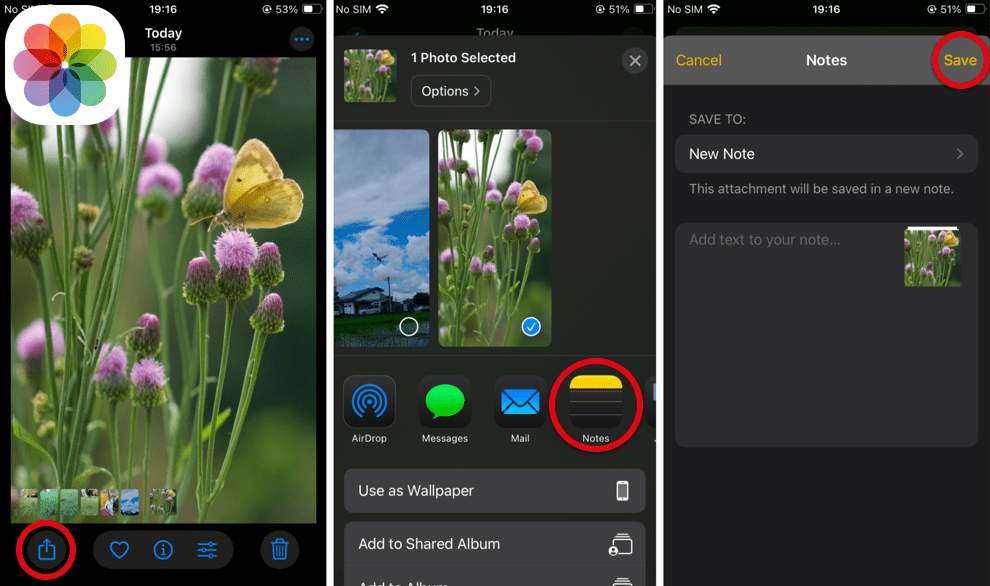
182e4-1
Then, use the Notes share button to save the image back to Photos.
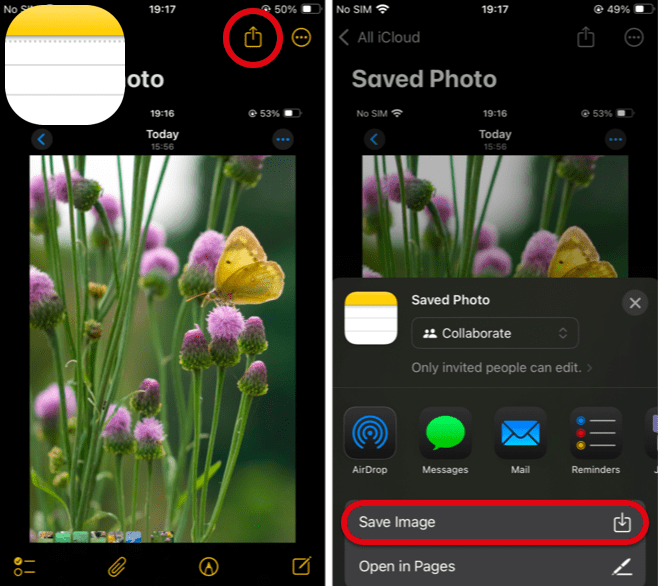
182e4-2
The new image will no longer retain the original composition. Use this new version and swipe up when setting it as your wallpaper
Exporting and reimporting the image in any way creates a new file. You could use AirDrop to transfer it between devices or a third-party photo editing app. However, if you’re limited to one iPhone and want a free method, Notes is your best option.
This workaround isn’t necessary for the iPhone SE 3 on iOS 18.2, but the screenshot was taken on an SE 3. This is a remnant from the beta version just before RC, where the SE 3 was a target device. The materials prepared during that time were used here.
iOS 18.2 went through four specification changes—RC-1, RC, RC2, and the official release (Was the release to beta users delayed?)—right before launch, ultimately leaving various bugs (The RC2 fix for the edit save issue on some devices has regressed. The bug in RC2 where auto-fill doesn't work for some wallpapers remains unresolved.) while swapping targeted devices. With such rapid changes, there’s hardly any time to report the issues to Apple.
〉Help

0 コメント

あなたのコメントは承認後に投稿されます。


返信を残す


    Archive

    4月 2026
    3月 2026
    2月 2026
    12月 2025
    11月 2025
    9月 2025
    12月 2024
    9月 2024
    7月 2024
    5月 2024
    3月 2024
    10月 2023
    9月 2023
    12月 2022
    10月 2022
    9月 2022
    8月 2022
    9月 2021
    11月 2020
    10月 2020
    9月 2020
    11月 2019
    10月 2019
    9月 2019
    5月 2019
    10月 2018
    9月 2018
    6月 2018
    5月 2018
    4月 2018
    3月 2018
    2月 2018
    1月 2018
    12月 2017
    11月 2017
    10月 2017
    9月 2017
    7月 2017
    5月 2017
    4月 2017
    3月 2017
    1月 2017
    12月 2016
    11月 2016
    10月 2016
    9月 2016
    8月 2016
    7月 2016
    5月 2016
    4月 2016
    3月 2016
    1月 2016
    12月 2015

    –iOS 11.2

    heyeasedのXへのリンク heyeasedのThreadsへのリンク heyeasedのBlueskyへのリンク ios-rss-feed
   About This Site   
     
 Privacy   Policy 
​Nakatani Hideaki @heyeased
​​​​CC BY-NC-SA 4.0
​Powered by ​Weebly
トップページへのリンク link to home page

  • New
  • Notes
  • iOS
  • Help
  • About This Site
  • Privacy Policy