Legacy
真iPhone壁紙の設定方法
How to Set iPhone Wallpaper True
Appleが言わないようなことまでさくっと解説。
A quick explanation of things Apple doesn’t mention.
A quick explanation of things Apple doesn’t mention.
壁紙の設定
ロック画面を長押し(または設定アプリ > 壁紙)
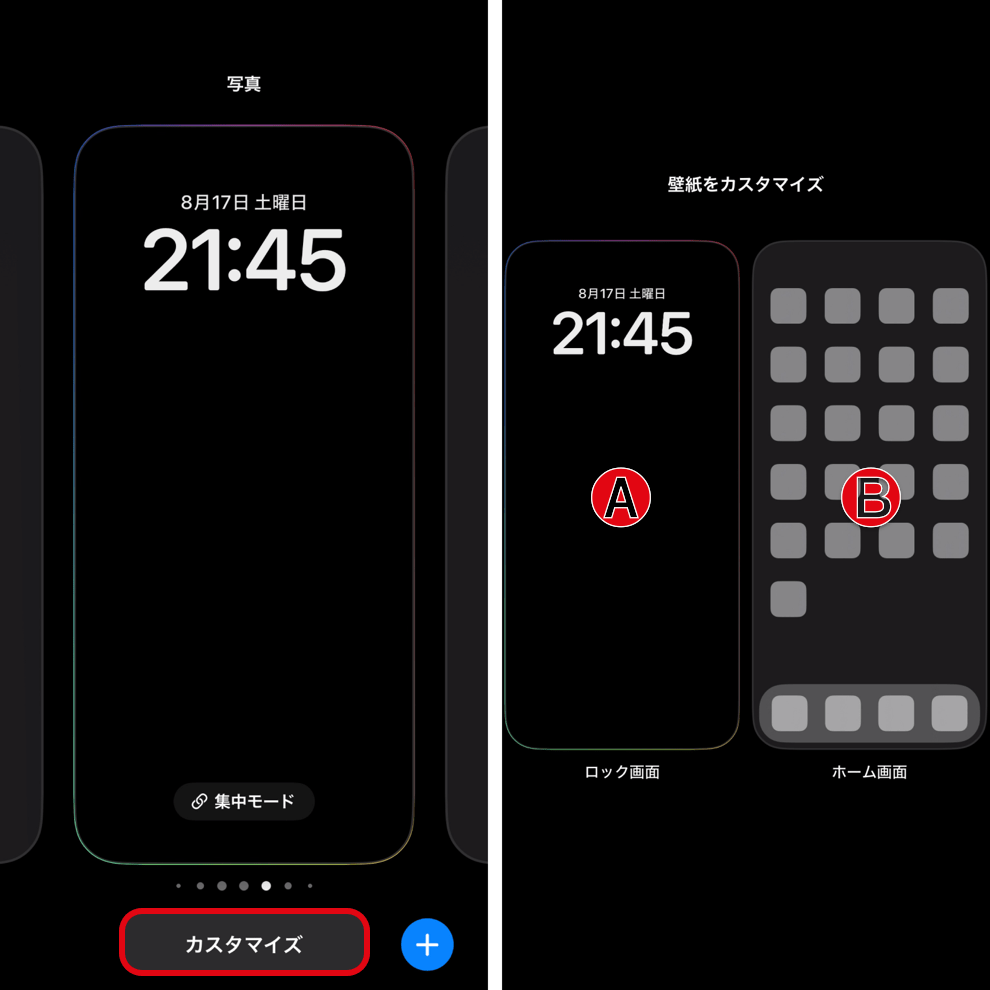
- 新しいペアを追加するときは ⊕ アイコンをタップ。デフォルト壁紙や写真シャッフルを使うときも⊕から。→ Appleサポート
- 従来通り写真アプリの共有ボタンから設定しても自動的に新しいペアが作られます(知らないうちにとんでもない数になるかも)。
サポートにない画像を設定する方法を以下で詳しく説明します。
A) ロック画面の壁紙とカスタマイズ
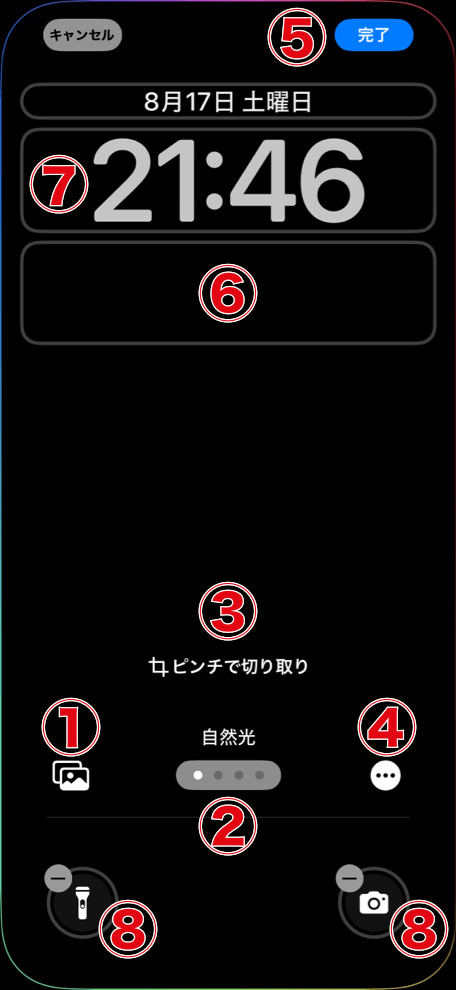
① 写真アプリから選択
② 横スワイプでスタイル(色調)を変更可
③ 壁紙を二本指ピンチで拡大縮小可(iOS 17以降、壁紙を動かすと上部がぼかされる。→ 上部のぼかしを防ぐ方法)
④ 写真をライブラリに表示で設定を中止して現在設定している画像にジャンプ、壁紙を拡大で③をリセット(可能な場合は、時計の前に被写体を見せる被写界深度エフェクトが表示される)
⑤ 完了
⑥ ウイジェットの追加・編集
⑦ 時計のフォントの変更
⑧ ボタンは ⊖ で削除、削除したのち ⊕ で変更可(空白も可)
② 横スワイプでスタイル(色調)を変更可
③ 壁紙を二本指ピンチで拡大縮小可(iOS 17以降、壁紙を動かすと上部がぼかされる。→ 上部のぼかしを防ぐ方法)
④ 写真をライブラリに表示で設定を中止して現在設定している画像にジャンプ、壁紙を拡大で③をリセット(可能な場合は、時計の前に被写体を見せる被写界深度エフェクトが表示される)
⑤ 完了
⑥ ウイジェットの追加・編集
⑦ 時計のフォントの変更
⑧ ボタンは ⊖ で削除、削除したのち ⊕ で変更可(空白も可)
B) ホーム画面の壁紙
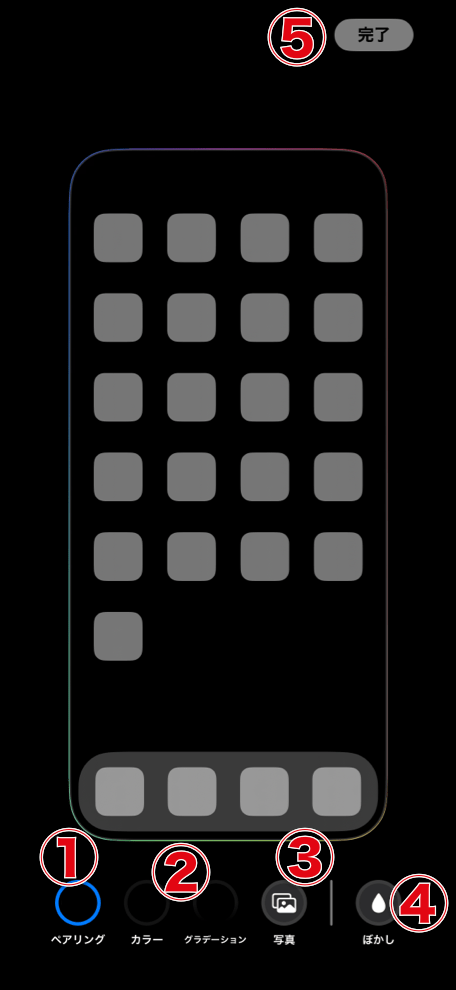
① ロック画面と同じ壁紙に
② ロック画面の壁紙を元に単色やグラデーションの背景に
③ 写真アプリからロック画面とは別の壁紙を選択 → A) ロック画面と同じ形式の設定画面に進む(⑥ウィジェット⑦時計⑧ボタンはない)
④ ホーム画面背景のぼかしオン/オフ
⑤ 完了
② ロック画面の壁紙を元に単色やグラデーションの背景に
③ 写真アプリからロック画面とは別の壁紙を選択 → A) ロック画面と同じ形式の設定画面に進む(⑥ウィジェット⑦時計⑧ボタンはない)
④ ホーム画面背景のぼかしオン/オフ
⑤ 完了
ホーム画面のカスタマイズ
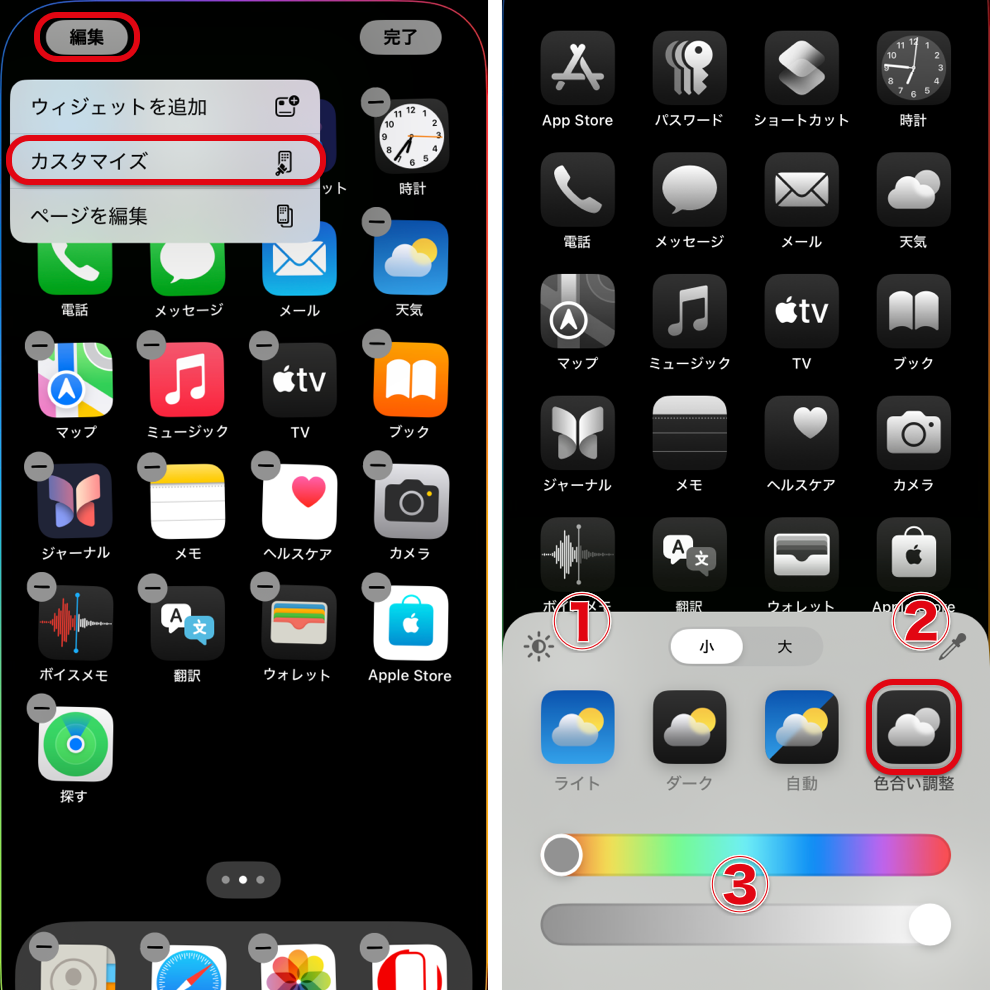
ホーム画面を長押し → 編集 > カスタマイズ
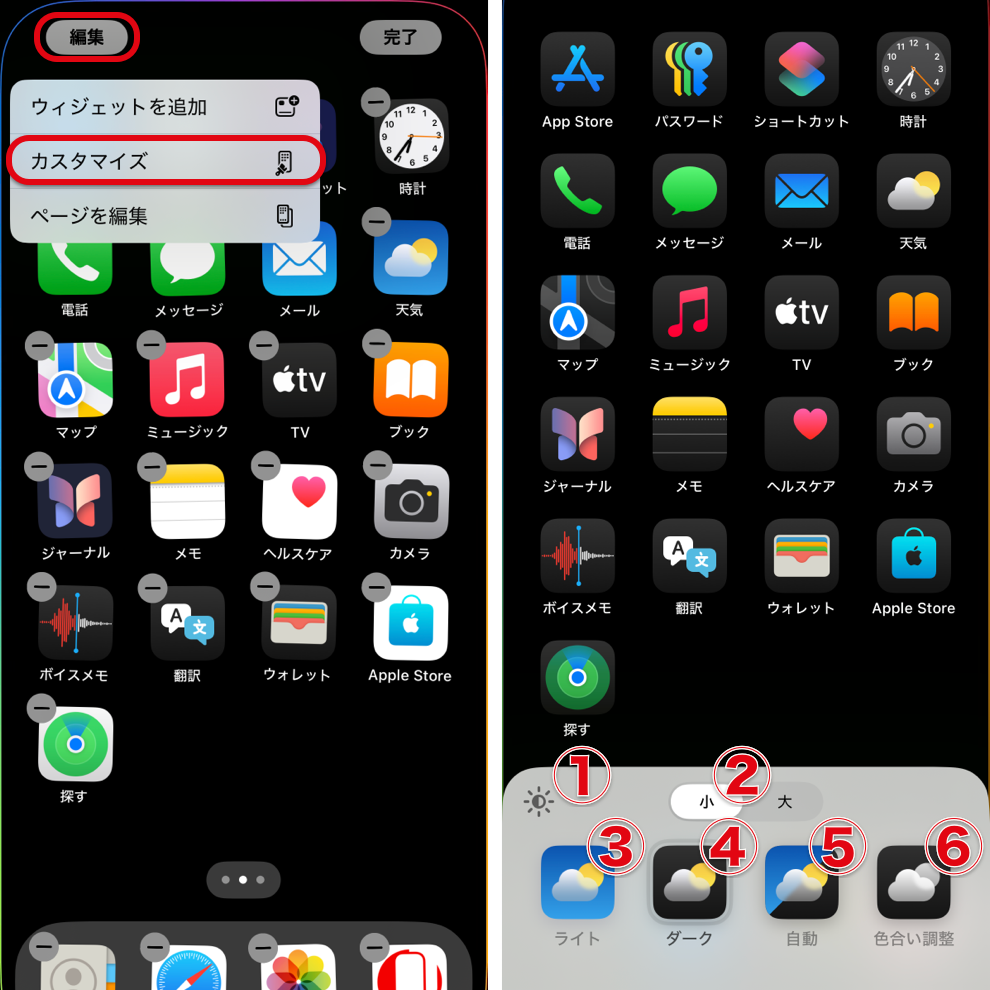
① 壁紙を◐暗く/ ◯明るく
② アイコン小/大:大にするとラベル非表示
② アイコン小/大:大にするとラベル非表示
以下◐マークのモードでは初期状態で壁紙が暗くなる。
③ ライト ◯:アイコン・ウィジェットを明るく
④ ダーク ◐:アイコン・ウィジェットを暗く
⑤ 自動 ◯:システムのモードに明暗が連動
⑥ 色合い調整 ◐:アイコンの色を統一 → 詳しい使い方
⑦ 完了するにはホーム画面をタップするか、カスタムパネルを下げる。
③ ライト ◯:アイコン・ウィジェットを明るく
④ ダーク ◐:アイコン・ウィジェットを暗く
⑤ 自動 ◯:システムのモードに明暗が連動
⑥ 色合い調整 ◐:アイコンの色を統一 → 詳しい使い方
⑦ 完了するにはホーム画面をタップするか、カスタムパネルを下げる。
ドックとフォルダの色
システムとホーム画面のどちらか一方がダークだと暗く、両方がライトだと明るくなる。→ ライトモードとダークモード
システムをダークモードに、ホーム画面をライトにすれば、暗いドックで明るいアイコンが可能。逆は不可能。
システムとホーム画面のどちらか一方がダークだと暗く、両方がライトだと明るくなる。→ ライトモードとダークモード
システムをダークモードに、ホーム画面をライトにすれば、暗いドックで明るいアイコンが可能。逆は不可能。
その他
アイコンとウィジェットのカスタマイズ
iOS 18ではホーム画面を長押しして任意の場所にアイコンとウィジェットを移動できる。ただし移動できるのは規定の場所のいずれか。例えばアイコンを中央に置くことなどはできない。
iOS 18ではホーム画面を長押しして任意の場所にアイコンとウィジェットを移動できる。ただし移動できるのは規定の場所のいずれか。例えばアイコンを中央に置くことなどはできない。
壁紙のペアを削除
ロック画面を長押し→上にスワイプ→ゴミ箱アイコンをタップ。まとめて削除はできない。
ロック画面を長押し→上にスワイプ→ゴミ箱アイコンをタップ。まとめて削除はできない。
文字を拡大
設定アプリ > 画面表示と明るさ > 拡大表示 > 文字を拡大で画面表示のすべてが大きくなる。表示範囲を狭くして画面全体を拡大する技術なのでスクリーンショットの画像サイズは小さくなる(解像度が下がる)。→ 標準と文字を拡大
設定アプリ > 画面表示と明るさ > 拡大表示 > 文字を拡大で画面表示のすべてが大きくなる。表示範囲を狭くして画面全体を拡大する技術なのでスクリーンショットの画像サイズは小さくなる(解像度が下がる)。→ 標準と文字を拡大
常に画面オンのオプション
ロック画面の常時点灯が可能なモデルでは設定アプリ > 画面表示と明るさ > 常に画面オンからオンオフまたは壁紙と通知それぞれをオンオフ。どちらもオフで常に画面オンだけを残した場合は日付と時刻のみ常に表示される。→ iOS 16.2以降
ロック画面の常時点灯が可能なモデルでは設定アプリ > 画面表示と明るさ > 常に画面オンからオンオフまたは壁紙と通知それぞれをオンオフ。どちらもオフで常に画面オンだけを残した場合は日付と時刻のみ常に表示される。→ iOS 16.2以降
ロック画面設定時のずれ
ロック画面の日付とウィジェットの位置は設定画面とは少しずれる。
ロック画面の日付とウィジェットの位置は設定画面とは少しずれる。
壁紙の表示範囲の初期状態
ピンチで切り取る前の壁紙の表示範囲は壁紙によっては変。
ピンチで切り取る前の壁紙の表示範囲は壁紙によっては変。
参考動画
こちらの動画も参考になります。

YouTube:みずおじさん / 誰でも分かるスマホ講座
Wallpaper Setup
Tap and hold the Lock Screen (or go to Settings > Wallpaper).
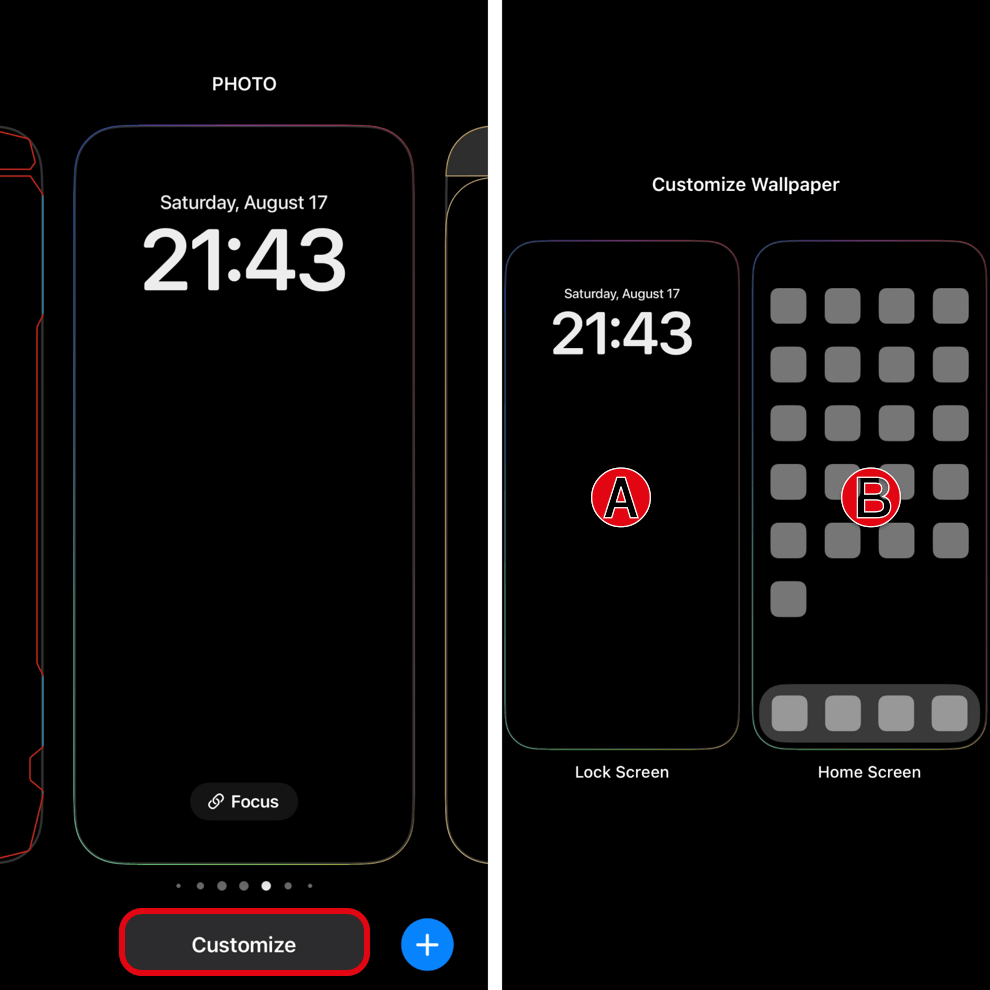
Tap Customize and select either A) Lock Screen or B) Home Screen. Swipe horizontally to choose a wallpaper pair.
Settings are saved for each screen pair individually.
Settings are saved for each screen pair individually.
- When adding a new pair, tap the ⊕ icon. You can also use ⊕ to access default wallpapers or Photo Shuffle. → Apple Support
- As before, setting it from the Photos share button will automatically create a new pair — and before you know it, you might end up with more than you expected.
Below, I will explain in detail how to set an image not found in the support.
A) Lock Screen Wallpaper and Customization
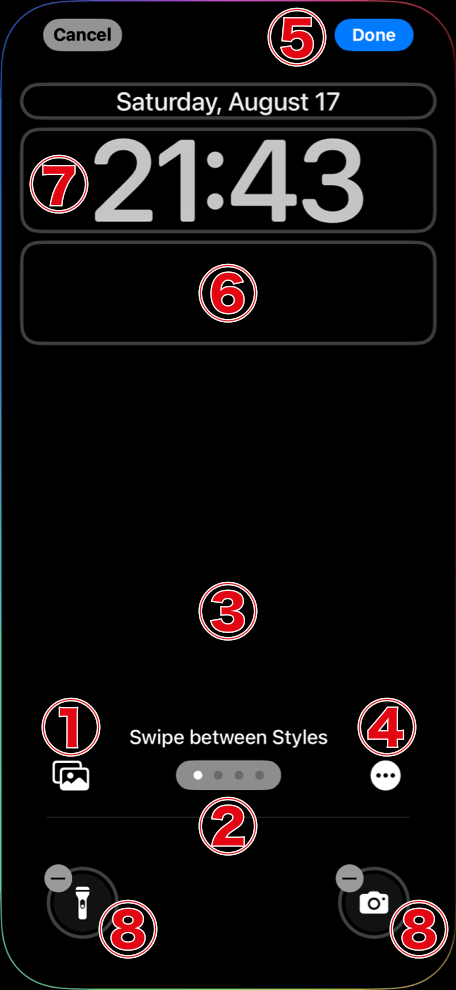
① Select from Photos.
② Swipe horizontally to change the style (color tone).
③ Pinch to zoom in or out (On iOS 17 and later, moving the wallpaper blurs the top part. → How to prevent the top blur).
④ Cancel the setup and jump to the currently set image with Show Photo in Library. Reset the ③ with Extend Wallpaper (if possible, the Depth Wallpaper showing the subject in front of the clock will be displayed).
⑤ Done.
⑥ Add/Edit widgets.
⑦ Change the clock font.
⑧ Buttons can be removed with ⊖, and after deletion, they can be modified with ⊕ (blank spaces are also allowed).
② Swipe horizontally to change the style (color tone).
③ Pinch to zoom in or out (On iOS 17 and later, moving the wallpaper blurs the top part. → How to prevent the top blur).
④ Cancel the setup and jump to the currently set image with Show Photo in Library. Reset the ③ with Extend Wallpaper (if possible, the Depth Wallpaper showing the subject in front of the clock will be displayed).
⑤ Done.
⑥ Add/Edit widgets.
⑦ Change the clock font.
⑧ Buttons can be removed with ⊖, and after deletion, they can be modified with ⊕ (blank spaces are also allowed).
B) Home Screen Wallpaper
① Use the same wallpaper as the Lock Screen.
② Use a solid color or gradient background based on the Lock Screen wallpaper.
③ Select a wallpaper from Photos that is different from Lock Screen. → Proceeds to the same setup screen as A) Lock Screen (without options ⑥ widgets, ⑦ clock, or ⑧ buttons).
④ Toggle blur on/off for the Home Screen background.
⑤ Done.
② Use a solid color or gradient background based on the Lock Screen wallpaper.
③ Select a wallpaper from Photos that is different from Lock Screen. → Proceeds to the same setup screen as A) Lock Screen (without options ⑥ widgets, ⑦ clock, or ⑧ buttons).
④ Toggle blur on/off for the Home Screen background.
⑤ Done.
Home Screen Customization
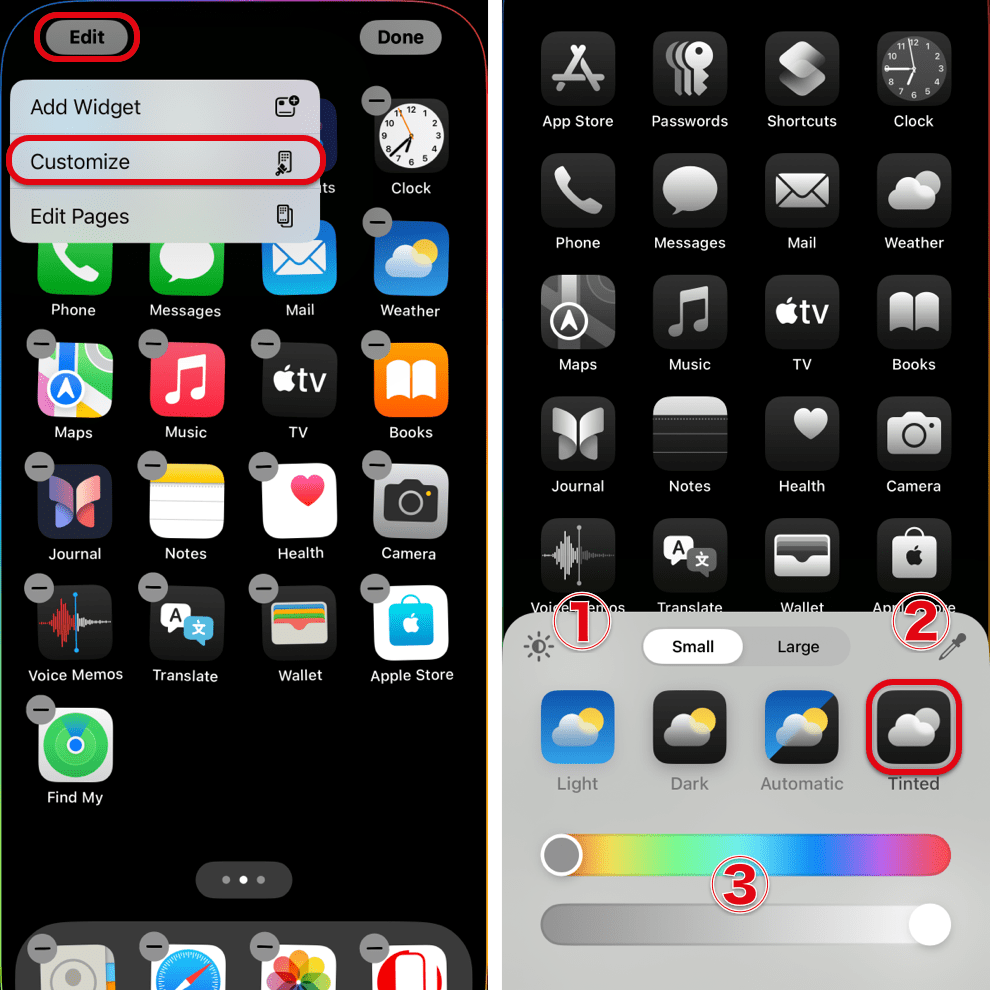
Tap and hold the Home Screen → Edit > Customize
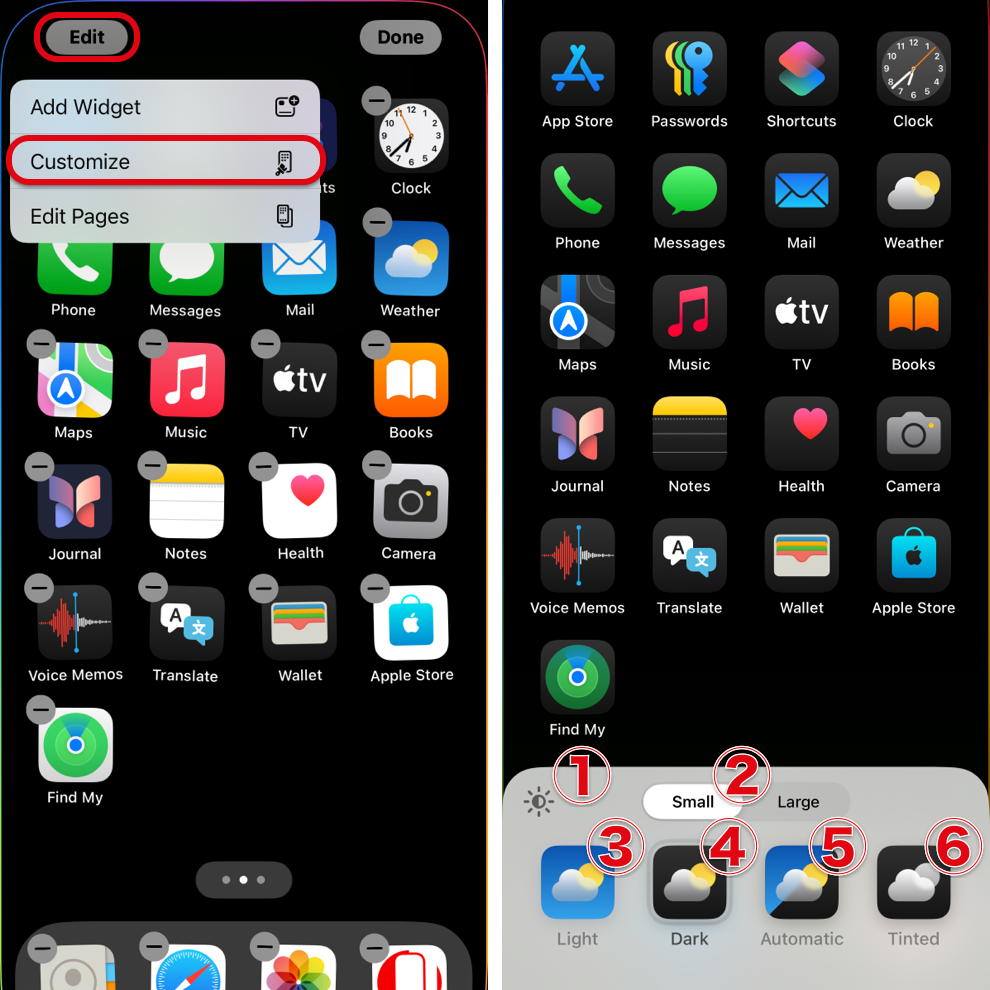
① Adjust wallpaper brightness: ◐ Dim / ◯ Bright
② Icon size Small/Large: Labels are hidden when set to Large.
② Icon size Small/Large: Labels are hidden when set to Large.
In ◐ mode, the wallpaper is initially darkened by default.
③ Light ◯: Brightens icons and widgets.
④ Dark ◐: Darkens icons and widgets.
⑤ Automatic ◯: Syncs brightness with the system mode.
⑥ Tinted ◐: Unify icon colors. → Learn more about how to use it.
⑦ To finish, tap the Home Screen or slide down the custom panel.
③ Light ◯: Brightens icons and widgets.
④ Dark ◐: Darkens icons and widgets.
⑤ Automatic ◯: Syncs brightness with the system mode.
⑥ Tinted ◐: Unify icon colors. → Learn more about how to use it.
⑦ To finish, tap the Home Screen or slide down the custom panel.
Dock and Folder Color
If either the system or Home Screen is set to Dark, the Dock and folders will be dark. If both are set to Light, they will be light. → Light Mode and Dark Mode
By setting the system to Dark Mode and the Home Screen to Light Mode, you can have a dark Dock with bright icons. The reverse combination is not possible.
If either the system or Home Screen is set to Dark, the Dock and folders will be dark. If both are set to Light, they will be light. → Light Mode and Dark Mode
By setting the system to Dark Mode and the Home Screen to Light Mode, you can have a dark Dock with bright icons. The reverse combination is not possible.
Others
Icon and Widget Customization
In iOS 18, you can tap and hold the Home Screen to move icons and widgets to any chosen spot. However, they can only be placed in pre-designated areas. For instance, placing an icon in the center is not possible.
In iOS 18, you can tap and hold the Home Screen to move icons and widgets to any chosen spot. However, they can only be placed in pre-designated areas. For instance, placing an icon in the center is not possible.
Deleting a Wallpaper Pair
Tap and hold the Lock Screen → Swipe up → Tap the trash icon. You can't delete multiple pairs at once.
Tap and hold the Lock Screen → Swipe up → Tap the trash icon. You can't delete multiple pairs at once.
Larger Text
Go to Settings > Display & Brightness > Display Zoom > Larger Text. This enlarges everything on the screen. Since this technique reduces the display area to magnify the entire screen, screenshots will be smaller in size (with lower resolution). → Default and Larger Text
Go to Settings > Display & Brightness > Display Zoom > Larger Text. This enlarges everything on the screen. Since this technique reduces the display area to magnify the entire screen, screenshots will be smaller in size (with lower resolution). → Default and Larger Text
Always On Display Options
For models that support an Always On Display Lock Screen, go to Settings > Display & Brightness > Always On Display to toggle it on or off, or to individually toggle wallpaper and notifications on or off. If both wallpaper and notifications are off, only the date and time will remain constantly displayed. → iOS 16.2 and later
For models that support an Always On Display Lock Screen, go to Settings > Display & Brightness > Always On Display to toggle it on or off, or to individually toggle wallpaper and notifications on or off. If both wallpaper and notifications are off, only the date and time will remain constantly displayed. → iOS 16.2 and later
Misalignment in Lock Screen Settings
The position of the date and widgets on the Lock Screen slightly differ from what is shown in the settings screen.
The position of the date and widgets on the Lock Screen slightly differ from what is shown in the settings screen.
Initial Display Area of Wallpapers
The initial display area of a wallpaper before pinching to crop may appear odd, depending on the specific wallpaper.
The initial display area of a wallpaper before pinching to crop may appear odd, depending on the specific wallpaper.
Reference Video
This video is also helpful.

YouTube: @iDeviceHelp