Legacy
壁紙の設定方法
How to Set the Wallpaper
iOS 16で通知センターから壁紙を設定する方法を説明します。
iOS 15以前の使い方はこちら
This section explains how to set the wallpaper from Notification Center in iOS 16.
How to use for iOS 15 or earlier
iOS 15以前の使い方はこちら
This section explains how to set the wallpaper from Notification Center in iOS 16.
How to use for iOS 15 or earlier
基本はロック画面→ホーム画面(ぼかし)
壁紙を追加するとき(とiOS 16にアップデートして初めて壁紙を変更するとき)は、必ずロック画面の設定から始まります。初期状態ではホーム画面にも同じ壁紙が自動的に設定され、背景はぼかされます。

完了させると画面ごとにその設定が次回変更時に引き継がれます。
例えばホーム画面を異なる壁紙にして、ぼかしをオフにしていた場合、次にその画面のホーム画面をロック画面と同じ壁紙にしてぼかしたければ「壁紙を両方に設定」するのではなく、「ホーム画面をカスタマイズ」に進んで「オリジナル(ロック画面の壁紙)」に切り替え、ぼかしをオンにする必要があります。
例えばホーム画面を異なる壁紙にして、ぼかしをオフにしていた場合、次にその画面のホーム画面をロック画面と同じ壁紙にしてぼかしたければ「壁紙を両方に設定」するのではなく、「ホーム画面をカスタマイズ」に進んで「オリジナル(ロック画面の壁紙)」に切り替え、ぼかしをオンにする必要があります。
変更する
画面を上からスワイプダウンして通知センターを呼び出します(フルスクリーンモデルの右上はコントロールセンター呼び出しです)。

画面を長押しして編集画面に入り、カスタマイズをタップ。

ホーム画面だけを変更する場合は右上の完了をタップ。
ロック画面では日付や時刻、ウィジェット、壁紙のカラー(「自然光」「白黒」「デュオトーン」「カラーウォッシュ」)、右下の…から被写界深度エフェクト、をカスタマイズできます。
ロック画面では日付や時刻、ウィジェット、壁紙のカラー(「自然光」「白黒」「デュオトーン」「カラーウォッシュ」)、右下の…から被写界深度エフェクト、をカスタマイズできます。

ロック画面を変更する場合は左下の写真アイコンをタップして壁紙を選択。

必要に応じてピンチ操作(指二本で画面をつまんだり広げたりする動作)で壁紙を拡大縮小して完了をタップ。
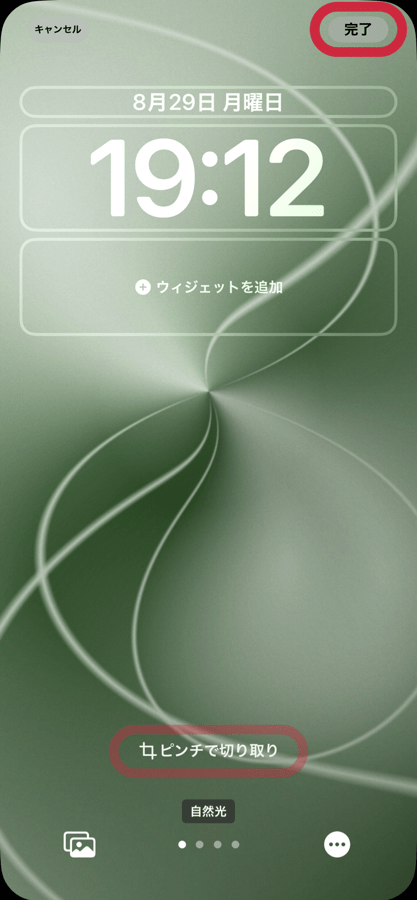
「壁紙を両方に設定」をタップすると表示されている状態になります(直前の設定を引き継ぎます)。

ホーム画面を変更するか、ぼかしのオンオフを切り替える場合は「ホーム画面をカスタマイズ」をタップ。

オリジナル(ロック画面と同じ)、色だけの背景にするカラーとグラデーション、写真(写真アプリに保存した画像)、ぼかしのオンオフを選択して設定後、完了をタップします。

画面をタップして終了します。

追加する
新規に追加する場合は右側から。➕をタップして始めます。
追加した壁紙はロック画面/通知センターを長押ししてスワイプで簡単に切り替えられます。
追加した壁紙はロック画面/通知センターを長押ししてスワイプで簡単に切り替えられます。

画面を削除するには上にスワイプしてゴミ箱アイコンをタップします。

注意点
❗️1
写真アプリから設定すると新しい画面が作られます
従来どおり写真アプリからも壁紙の設定はできますが、何の断りもなく新しい画面が追加されるので気をつけてください。色々試していると知らないうちにロック画面とホーム画面のペアが大量に作られていますよ。
削除は一つずつするしかありません。
写真アプリから設定すると新しい画面が作られます
従来どおり写真アプリからも壁紙の設定はできますが、何の断りもなく新しい画面が追加されるので気をつけてください。色々試していると知らないうちにロック画面とホーム画面のペアが大量に作られていますよ。
削除は一つずつするしかありません。

壁紙を普通に変更する場合は通知センターまたは設定アプリから設定するようにしてください。
❗️2
壁紙の表示位置は不安定
壁紙の表示はめちゃくちゃに拡大されて変な位置になったり、ならなかったりします(当サイトのiOS 16に対応した壁紙は調整しやすくしてあるのでご安心ください)。調整が必要なこともしばしばです。
壁紙の表示位置は不安定
壁紙の表示はめちゃくちゃに拡大されて変な位置になったり、ならなかったりします(当サイトのiOS 16に対応した壁紙は調整しやすくしてあるのでご安心ください)。調整が必要なこともしばしばです。
❗️3
カスタマイズの罠
一部の機種(5.8インチと5.4インチ画面の、スクリーンショットの解像度の横幅が奇数ピクセルのiPhone)では、壁紙を設定後に再び画面のカスタマイズを開始すると僅かに表示がずれます。これが問題となる場合は一度他の壁紙で設定を完了させてから、再度壁紙を選び直して一回でカスタマイズを終了させる必要があります。同じ壁紙のままで調整することはできないようになっています。
カスタマイズの罠
一部の機種(5.8インチと5.4インチ画面の、スクリーンショットの解像度の横幅が奇数ピクセルのiPhone)では、壁紙を設定後に再び画面のカスタマイズを開始すると僅かに表示がずれます。これが問題となる場合は一度他の壁紙で設定を完了させてから、再度壁紙を選び直して一回でカスタマイズを終了させる必要があります。同じ壁紙のままで調整することはできないようになっています。
❗️4
ロック画面の日付とウィジェットの位置は設定画面とは異なります
ロック画面の日付とウィジェットの位置は設定画面よりも時刻寄りにずれます。
iPhoneの壁紙設定のロック画面の時刻周りの位置は昔から適当でしたが、ガイドラインが付いても相変わらずズレています。
ロック画面の日付とウィジェットの位置は設定画面とは異なります
ロック画面の日付とウィジェットの位置は設定画面よりも時刻寄りにずれます。
iPhoneの壁紙設定のロック画面の時刻周りの位置は昔から適当でしたが、ガイドラインが付いても相変わらずズレています。

❗️5
ライブ壁紙と視差効果は機能しません
ロック画面を押すと動くライブ壁紙はiOS 16では動きません。長押しすると壁紙の設定画面になるからです。
それから視差効果も廃止されています。これに伴い壁紙の余白という概念もなくなりました。
ライブ壁紙と視差効果は機能しません
ロック画面を押すと動くライブ壁紙はiOS 16では動きません。長押しすると壁紙の設定画面になるからです。
それから視差効果も廃止されています。これに伴い壁紙の余白という概念もなくなりました。
Basically, Lock Screen → Home Screen (Blur)
When adding a wallpaper (and when changing wallpapers for the first time after updating to iOS 16), always start with the Lock Screen setting. By default, the same wallpaper is automatically set for the Home Screen and the background is blurred.

Once completed, the settings for each screen will be carried over to the next change.
For example, if you had set the Home Screen to a different wallpaper and turned off Blur. If you then want to blur the Home Screen of that screen with the same wallpaper as the Lock Screen, you must go to Customize Home Screen without tapping Set as Wallpaper Pair, switch to Original (the Lock Screen's wallpaper), and turn on Blur.
For example, if you had set the Home Screen to a different wallpaper and turned off Blur. If you then want to blur the Home Screen of that screen with the same wallpaper as the Lock Screen, you must go to Customize Home Screen without tapping Set as Wallpaper Pair, switch to Original (the Lock Screen's wallpaper), and turn on Blur.
To Change
Swipe down from the top of the screen to call Notification Center (Top right of full screen model is Control Center call.).

Tap and hold the screen to enter the edit screen, then tap Customize.

To change only the Home Screen, tap Done in the upper right corner.
On the Lock Screen, you can customize the date, time, widgets, wallpaper color (NATURAL, BLACK & WHITE, DUOTONE, or COLOR WASH), and Depth Effect from "..." in the lower right corner.
On the Lock Screen, you can customize the date, time, widgets, wallpaper color (NATURAL, BLACK & WHITE, DUOTONE, or COLOR WASH), and Depth Effect from "..." in the lower right corner.

To change the Lock Screen, tap the Photos icon in the lower left corner and select a wallpaper.

Pinch (Pinching and spreading the screen with two fingers.) to scale the wallpaper as needed and tap Done.

Tap Set as Wallpaper Pair to make it visible (it will take over the previous setting).

Tap Customize Home Screen to change Home Screen or turn Blur on/off.

After selecting and setting Original (same as Lock Screen), Color and Gradient for a color-only background, Photos (an image saved in the Photos app), Blur on or off, tap Done.

Tap the screen to exit.

To Add
To add a new one, start from the right side. Tap ➕ to begin.
Added wallpapers can be easily switched by swiping after tap and hold on Lock Screen/Notification Center.
Added wallpapers can be easily switched by swiping after tap and hold on Lock Screen/Notification Center.

To delete a screen, swipe up and tap the trash can icon.

Notes
❗️1
Setting From Photos Creates a New Screen
You can set a wallpaper from Photos as before, but be careful, because it will add a new screen without any notice. If you try various wallpapers, a lot of pairs of Lock Screen and Home Screen will be created without you noticing.
Deletions must be made one by one.
Setting From Photos Creates a New Screen
You can set a wallpaper from Photos as before, but be careful, because it will add a new screen without any notice. If you try various wallpapers, a lot of pairs of Lock Screen and Home Screen will be created without you noticing.
Deletions must be made one by one.

If you want to change the wallpaper normally, please set the wallpaper from Notification Center or Settings.
❗️2
Wallpaper Display Position Is Unstable
The wallpaper may or may not be messily enlarged and positioned oddly (Don't worry, the iOS 16 compatible wallpapers on this site are easy to adjust.). Often adjustments are necessary.
Wallpaper Display Position Is Unstable
The wallpaper may or may not be messily enlarged and positioned oddly (Don't worry, the iOS 16 compatible wallpapers on this site are easy to adjust.). Often adjustments are necessary.
❗️3
Customization Trap
On some models (5.8" and 5.4" screens with odd pixel width in the resolution of the screenshot), the display is slightly off when you start customizing the screen again after setting the wallpaper. If this is a problem, you will need to complete the setting with a different wallpaper and then select the wallpaper again to finish the customization with one step. It is not allowed to adjust the same wallpaper as it is.
Customization Trap
On some models (5.8" and 5.4" screens with odd pixel width in the resolution of the screenshot), the display is slightly off when you start customizing the screen again after setting the wallpaper. If this is a problem, you will need to complete the setting with a different wallpaper and then select the wallpaper again to finish the customization with one step. It is not allowed to adjust the same wallpaper as it is.
❗️4
Lock Screen Date and Widgets Are in Different Positions Than in the Settings Screen
Lock Screen date and widgets are positioned closer to the time than in the settings screen.
The position around the time in Lock Screen in the iPhone Wallpaper settings has always been inaccurate, but even with the new guidelines, it is still off.
Lock Screen Date and Widgets Are in Different Positions Than in the Settings Screen
Lock Screen date and widgets are positioned closer to the time than in the settings screen.
The position around the time in Lock Screen in the iPhone Wallpaper settings has always been inaccurate, but even with the new guidelines, it is still off.

❗️5
Live Wallpaper and Perspective Zoom Do Not Work
Live Wallpaper that moves when Lock Screen is pressed does not work on iOS 16. This is because tap-and-hold will take you to the wallpaper setting screen.
And Perspective Zoom is also discontinued. Along with this, the concept of wallpaper margins has also disappeared.
Live Wallpaper and Perspective Zoom Do Not Work
Live Wallpaper that moves when Lock Screen is pressed does not work on iOS 16. This is because tap-and-hold will take you to the wallpaper setting screen.
And Perspective Zoom is also discontinued. Along with this, the concept of wallpaper margins has also disappeared.